How to Extend an Ethernet Cable Safely and Effectively
Learn reliable methods like using an Ethernet coupler or crimping a new cable to extend your Ethernet cable, ensuring optimal network performance.
Need to extend an Ethernet cable but worried about losing speed or creating an unreliable connection? You're in the right place! While quick fixes like electrical tape might seem appealing, they inevitably lead to poor network performance and frustrating disconnections. This guide will show you how to properly and safely extend your Ethernet cable using industry-standard methods: either with a reliable RJ45 coupler or by crimping a new, custom-length cable. Follow these steps to ensure your internet connection remains fast, stable, and secure.
Method 1: Extending with an Ethernet Coupler
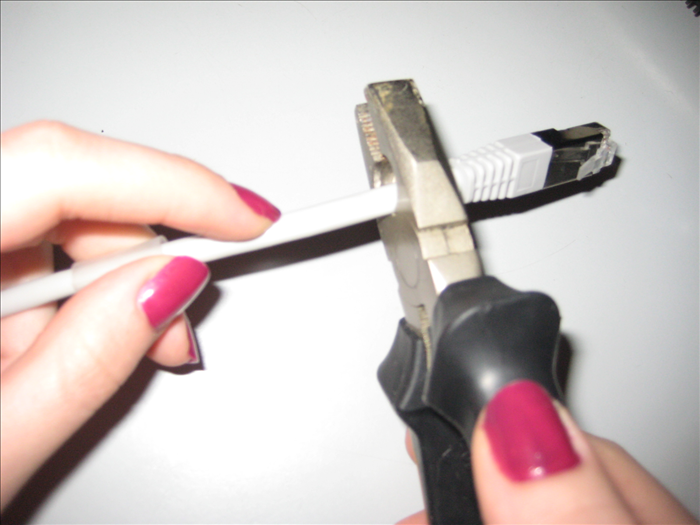
The simplest way to extend an Ethernet cable is by using an RJ45 coupler. This method is quick and requires no special tools, making it ideal for temporary setups or when minimal length extension is needed. However, be aware that each connection point can introduce a tiny amount of signal degradation, so it's best for shorter overall extensions.
1. Gather Your Cables and Coupler
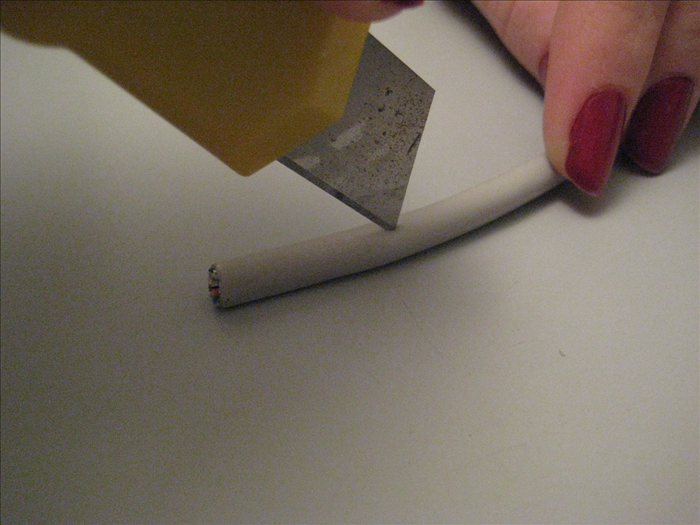
Ensure you have two Ethernet cables that are compatible (e.g., both Cat5e or both Cat6) and an RJ45 coupler. Inspect both cables for any signs of damage to the jacket or connectors. A damaged cable could cause performance issues regardless of the coupler.
2. Connect the Cables
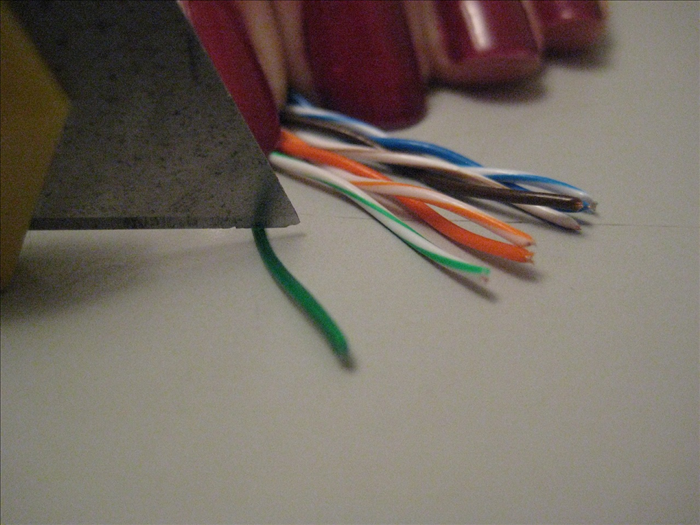
Firmly insert one RJ45 connector from your first Ethernet cable into one end of the RJ45 coupler until you hear a click. Repeat this with the second Ethernet cable into the other end of the coupler. Ensure both connections are secure and the retaining clips on the RJ45 connectors are fully engaged with the coupler.
3. Test the Connection
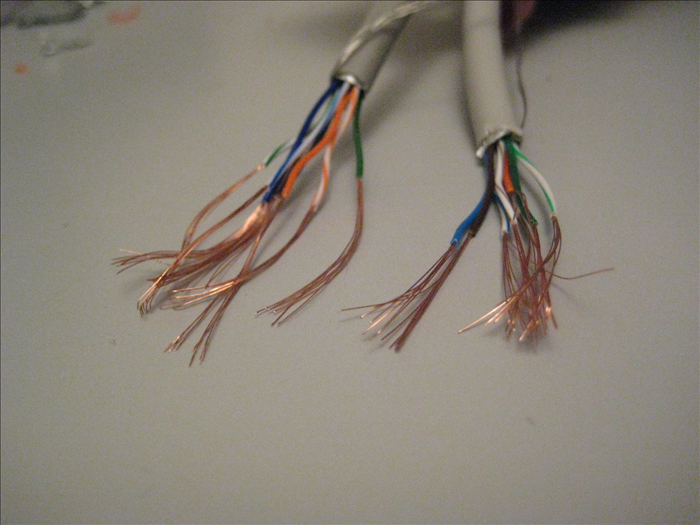
Connect one end of your newly extended cable to your network device (e.g., computer, gaming console) and the other end to your router or network switch. Verify that you have a stable network connection and test your internet speed to ensure it meets your expectations. If you experience issues, double-check both connections at the coupler.
For critical connections or longer runs, consider purchasing a high-quality, shielded RJ45 coupler, especially if your cables are also shielded (STP).
Method 2: Crimping a New, Longer Ethernet Cable
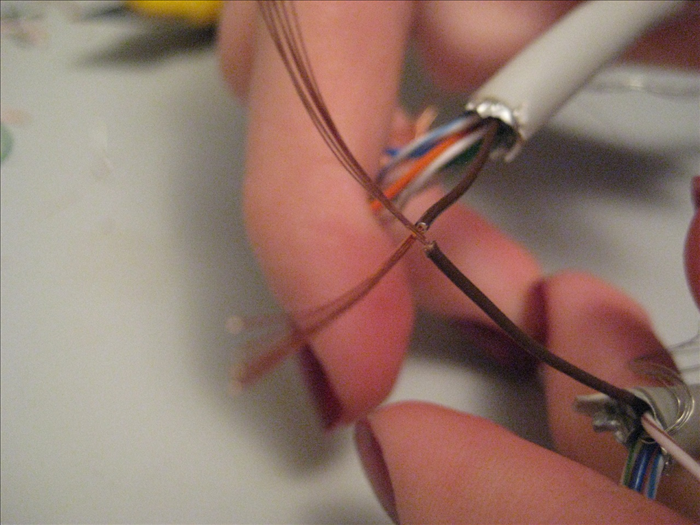
For the most reliable and custom-length extension, creating a new Ethernet cable by crimping RJ45 connectors onto bulk cable is the best approach. This method requires a few specialized tools but offers superior performance and durability, as it avoids an extra connection point.
1. Prepare Your Tools and Cable
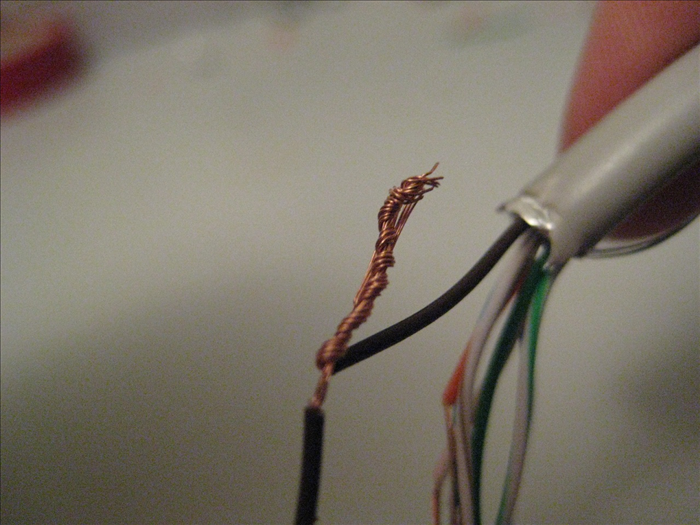
Lay out your bulk Ethernet cable, RJ45 connectors, crimping tool, and wire stripper. Measure and cut the bulk Ethernet cable to your desired length. Remember to account for a little extra length for stripping and crimping on both ends.
2. Strip the Cable Jacket
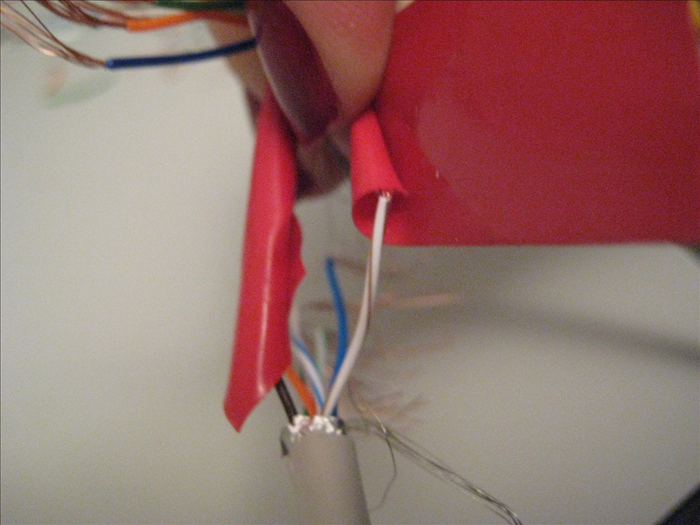
Using your wire stripper, carefully remove about 1 inch (2.5 cm) of the outer jacket from one end of the Ethernet cable. Be extremely careful not to cut or nick the insulated wires inside. Twist the four pairs of wires to untwist them and straighten each individual wire.
3. Arrange the Wires (T568B or T568A)
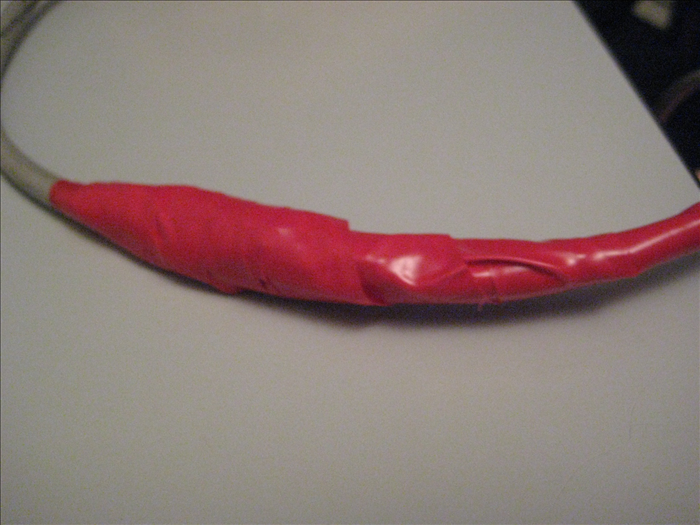
This is crucial! You must arrange the eight individual wires into either the T568B or T568A standard color code. T568B is the most common for residential and commercial use. Ensure both ends of your new cable use the *same* standard (e.g., T568B on both ends) for a 'straight-through' cable. For T568B, the order from left to right (with the RJ45 clip facing down) is: Orange/White, Orange, Green/White, Blue, Blue/White, Green, Brown/White, Brown.
If connecting directly to another computer without a router/switch (a 'crossover' cable), you would use T568A on one end and T568B on the other. For extending a network, stick to straight-through (same standard on both ends).
4. Trim and Insert Wires into RJ45 Connector
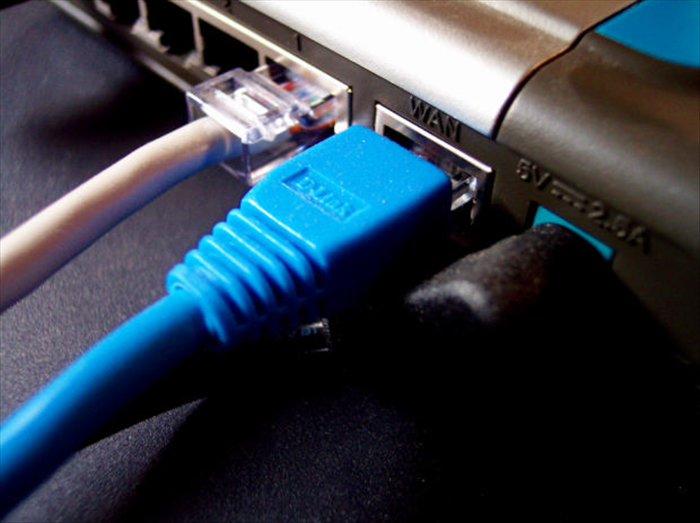
Once the wires are in the correct order and straightened, trim them all to an even length, leaving about 0.5 inches (1.25 cm) of exposed wires. Carefully insert the aligned wires into the RJ45 connector, ensuring each wire slides into its respective channel. Push firmly until the wires reach the end of the connector and the cable jacket is slightly inside the connector body for strain relief.
5. Crimp the Connector
Place the RJ45 connector, with the wires fully inserted, into the appropriate slot on your crimping tool. Squeeze the handles of the crimping tool firmly and completely until the connector's pins pierce the wires and secure them, and the strain relief tab locks onto the cable jacket. Remove the crimped connector.
6. Repeat and Test
Repeat steps 2-5 for the other end of your Ethernet cable. Once both ends are crimped, use an Ethernet cable tester to verify that all eight wires are correctly connected and that there are no shorts or open circuits. Then, connect the new cable to your devices and test for network connectivity and speed.
For maximum reliability, always test newly crimped cables with a dedicated cable tester before deploying them. This can save you hours of troubleshooting later.
Important Considerations for Optimal Performance
Ensuring your extended network cable performs efficiently involves more than just connecting wires. Keep these factors in mind for a robust network.
### Cable Types (Cat5e, Cat6, Cat6a, Cat7)
Always match your cable types. If you're extending a Cat5e cable, use another Cat5e or a higher category cable (though the overall speed will be limited by the lowest category in the chain). For new installations, Cat6 or Cat6a are recommended for future-proofing, especially for speeds above 1 Gigabit Ethernet. Each category supports different maximum speeds and bandwidths over varying distances.
### Maximum Length Limits
Standard Ethernet (Cat5e, Cat6) cables have a maximum effective length of 100 meters (328 feet) for reliable data transmission without active repeaters. Exceeding this limit will likely result in signal degradation, slower speeds, and intermittent connectivity. Plan your extensions carefully to stay within these limits.
### Minimize Connection Points
Every additional connection point (like a coupler) introduces a potential point of signal loss or interference. While couplers are convenient, direct crimping (Method 2) eliminates one connection point, often leading to a more robust and faster connection for longer or critical runs.
### Safety First
When using wire strippers and crimping tools, always exercise caution to avoid injury. Ensure you are working in a well-lit area and keep tools away from children. Never work with live electrical cables.
Troubleshooting Common Network Extension Issues
Even with proper techniques, issues can arise. Here's how to diagnose and fix common problems.
### No Connection / No Link Light
- Check all connections: Ensure both ends of the extended cable are firmly plugged into your devices and the coupler (if used) is secure.
- Verify crimps: If you crimped new connectors, use an Ethernet cable tester. If a tester isn't available, re-crimp the connectors, paying close attention to the wire order and ensuring all pins make contact.
- Try a different cable/port: Test your devices with a known working cable or try a different port on your router/switch to isolate the problem.
### Slow Speeds or Intermittent Connection
- Cable type mismatch: Ensure all cables in the extension are compatible and of sufficient category for your desired speed.
- Exceeded length limit: If your total cable length is over 100 meters, signal degradation is likely. Consider adding an Ethernet switch or repeater in the middle.
- Poor quality components: Cheap couplers or connectors can cause issues. Replace them with higher-quality alternatives.
- Interference: Keep Ethernet cables away from power lines, fluorescent lights, and other sources of electromagnetic interference.
WARNING: Why You Must NOT Use Electrical Tape or Direct Splicing
The original guide suggested using electrical tape and scissors to extend network cables. This is a critical mistake and will severely degrade your network performance. Here's why you should absolutely AVOID these methods:
- Destroys Twisted-Pair Integrity: Ethernet cables rely on precisely twisted pairs of wires to cancel out electromagnetic interference and maintain signal integrity. Cutting and taping wires directly destroys this delicate twisting, leading to significant signal loss, crosstalk, and drastically reduced data speeds.
- Unreliable Connections: Taped connections are prone to loosening, corrosion, and breaking. This results in intermittent connectivity, frequent disconnections, and frustrating downtime.
- Severe Performance Degradation: Expect drastically reduced data transfer rates (potentially from Gigabit to 10 Mbps or even 0), increased latency, and packet loss. Your internet and local network will become practically unusable.
- Safety Hazard: Exposed wires, even low-voltage ones, can pose risks in certain environments and are certainly not up to code.
Always use proper RJ45 couplers or crimp new connectors as described in this guide for a safe, reliable, and high-performance network connection.
Extending your Ethernet cable doesn't have to be a gamble. By choosing the right method—whether it's a simple coupler for convenience or crimping a custom cable for peak performance—you can ensure your network remains fast and stable. Avoid the pitfalls of improper splicing and enjoy a reliable connection across your home or office.

