How to Add Stickers & Emoticons to Facebook Messages: A Step-by-Step Guide
Looking to add more personality to your online conversations? This comprehensive guide provides step-by-step instructions on how to add Facebook stickers and expressive Facebook emoticons to your messages on both desktop and mobile. Learn to easily send stickers on Facebook Messenger, discover where to find new sticker packs, and make your chats more engaging and fun.
In today's digital world, expressing emotions and reactions goes beyond just words. Facebook Messenger offers a vibrant way to communicate through stickers and emoticons, adding personality and fun to your conversations. Whether you're celebrating, commiserating, or just sharing a laugh, knowing how to add Facebook stickers and expressive Facebook emoticons can elevate your chat experience. This guide will walk you through the simple steps to send stickers on Facebook Messenger from both your computer and mobile device, and even show you where to find and manage your favorite sticker packs.
<h3>Adding Stickers & Emoticons on Desktop</h3>
Open Facebook Messenger

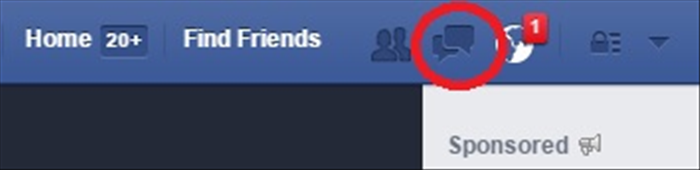
Navigate to Facebook.com in your web browser and log in. Click on the Messenger icon (a speech bubble) in the top right corner, or go directly to messenger.com. Open the conversation you wish to send a sticker or emoticon in.
Access the Sticker & Emoticon Panels
In the chat window, you'll see a few icons at the bottom next to the text input field. Look for the 'smiley face' icon. Clicking this icon will reveal a panel with various options: traditional emoticons (small yellow faces), a separate section for stickers, and potentially GIFs.
Choose and Send a Sticker
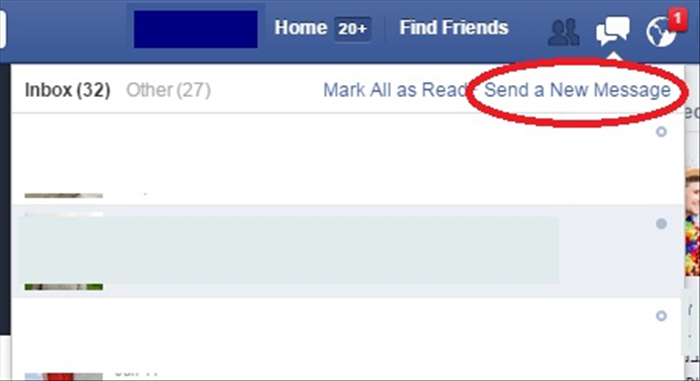
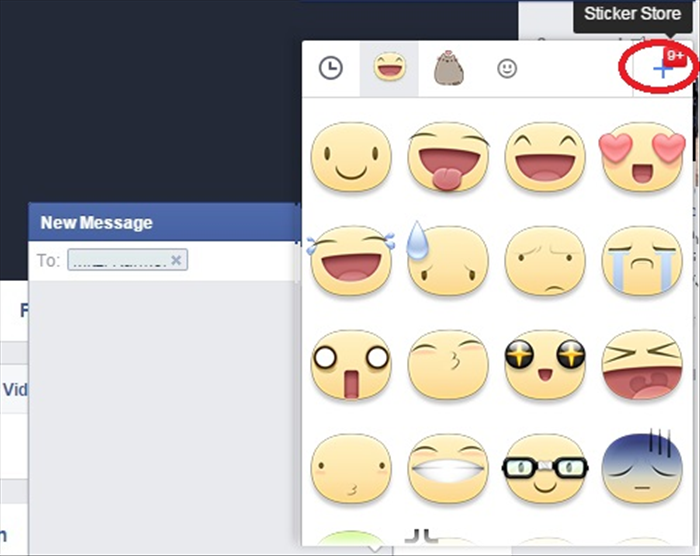
Click on the 'sticker' icon within the smiley face panel (it often looks like a square peel-off sticker). Browse through your available sticker packs. To select a sticker, simply click on it. It will instantly be sent into your conversation. To add more sticker packs, click the '+' icon.
Use Emoticons
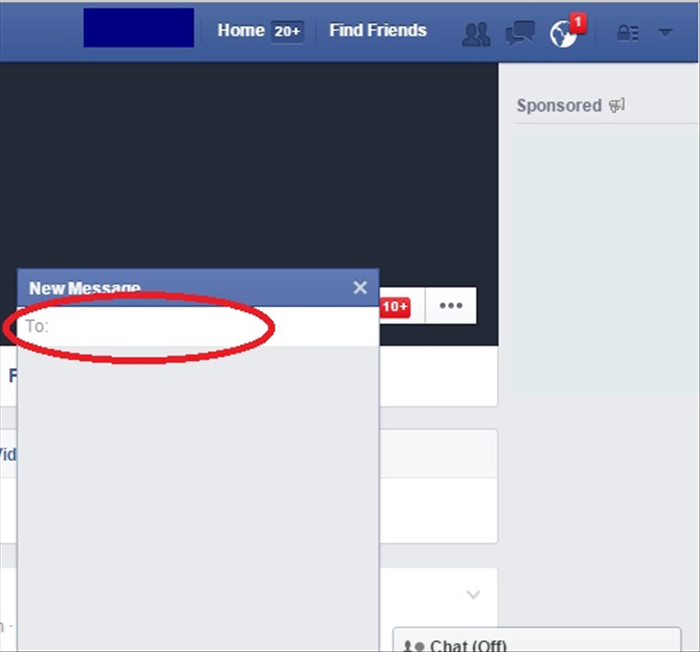
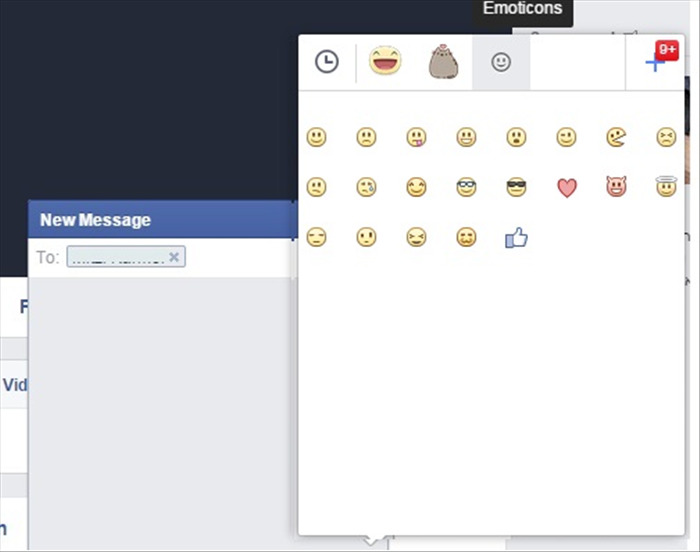
If you want to use classic emoticons or Facebook emojis, click on the 'smiley face' icon again and select the 'emoticon' tab. You can scroll through hundreds of options. Clicking on an emoticon will add it directly to your text message. You can type a message around it or send it alone.
<h3>Adding Stickers & Emoticons on Mobile (iOS & Android)</h3>
Open the Facebook Messenger App
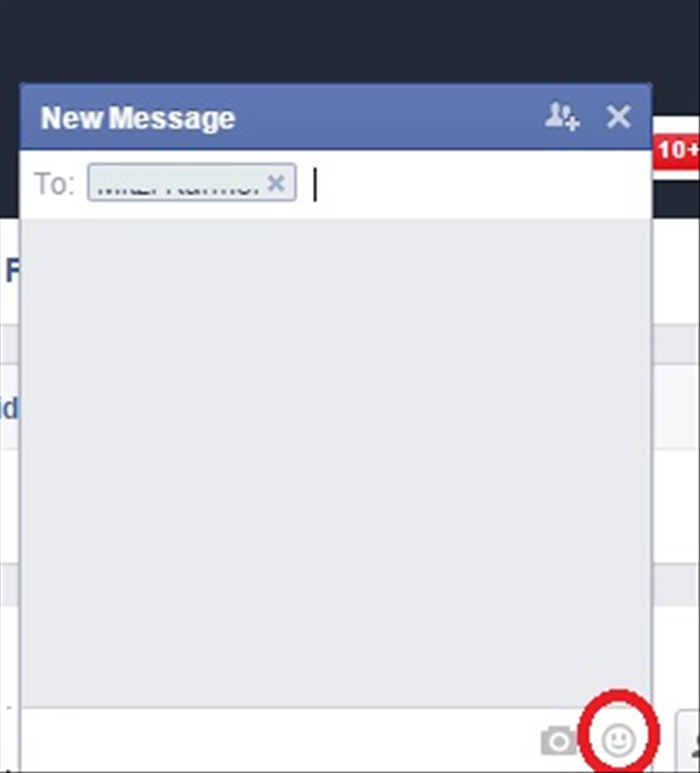
Launch the Messenger app on your smartphone or tablet. Ensure you are logged into your Facebook account. Open the chat you want to send a sticker or emoticon to.
Access the Sticker & Emoticon Options
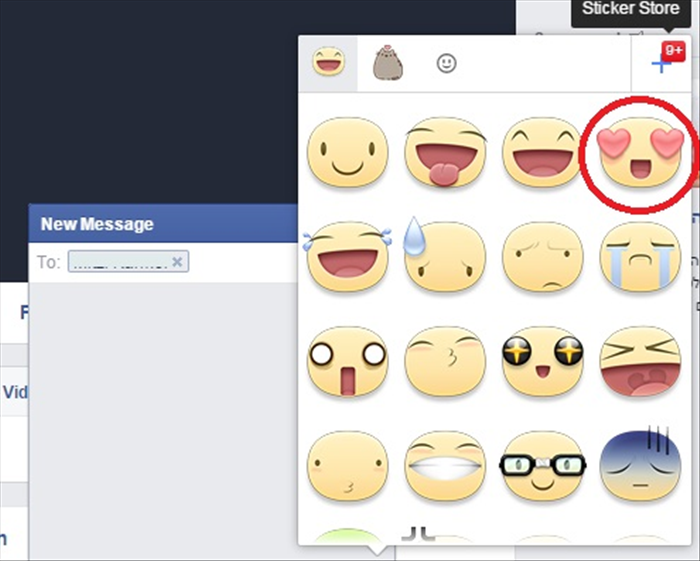
In the message input field, you'll see a 'smiley face' icon to the right (or sometimes left, depending on your device/app version). Tap this icon to open the sticker, GIF, and emoticon menu.
Select and Send Stickers
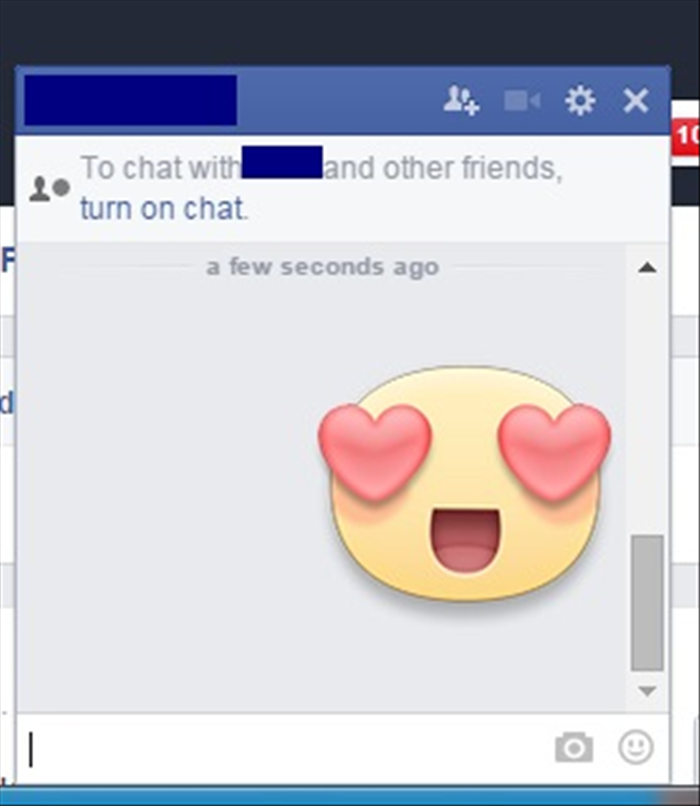
Once the menu appears, tap the 'sticker' icon (often depicted as a square sticker). You can scroll horizontally through your available sticker packs at the top. Tap a sticker pack to see its contents, then tap the individual sticker you wish to send. It will appear immediately in your chat.
Insert Emoticons/Emojis
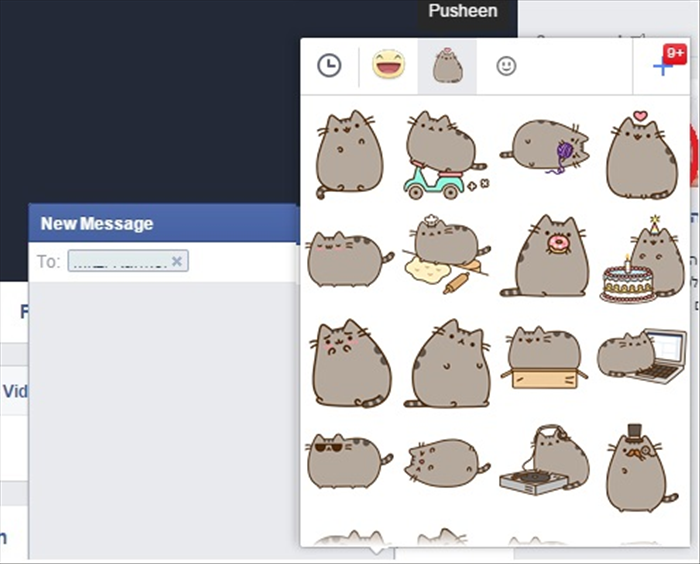
To use standard emoticons or emojis, tap the 'smiley face' icon and then the 'emoji' tab (often next to stickers and GIFs). You can also use your device's built-in emoji keyboard by tapping the 'keyboard' icon and switching to the emoji layout.
Beyond static stickers, Facebook Messenger also supports animated stickers and GIFs. Look for the 'GIF' tab next to your stickers and emoticons to browse and send short animated clips that can add even more dynamic expression to your conversations.
<h3>Finding and Managing Sticker Packs</h3>
Access the Sticker Store
On both desktop and mobile, when you are in the sticker selection panel, look for a '+' icon or a 'Store' button. Tapping this will take you to the Messenger Sticker Store, where you can discover a vast library of free and sometimes paid sticker packs.
Browse and Download New Packs
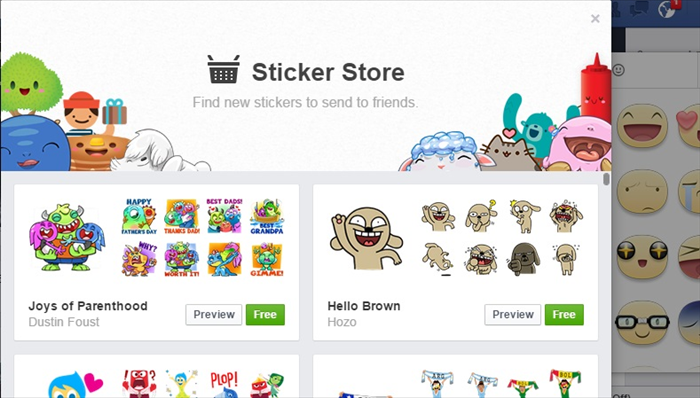
In the Sticker Store, you can browse by category, trending packs, or search for specific themes. When you find a pack you like, tap the 'Free' or 'Download' button to add it to your collection. The new pack will then be available in your sticker selection menu.
Manage Your Sticker Packs
Within the Sticker Store, there's usually a 'My Stickers' or 'Downloaded' section. Here, you can view all your installed sticker packs, reorder them to prioritize your favorites, or remove packs you no longer use to keep your selection tidy.
Adding stickers and emoticons is an excellent way to enhance your Facebook Messenger conversations, making them more vibrant, personal, and expressive. From quick reactions to detailed visual stories, these tools allow you to communicate effectively and have more fun while chatting. So go ahead, explore the vast world of Facebook stickers and emoticons, and start sending animated stickers on Facebook today!