How to Check Apple Product Warranty Status (iPhone, iPad, Mac & More)
Learn how to easily check the warranty status of your Apple devices, including iPhones, iPads, and Macs, using their serial number. Find coverage details & options.
What You'll Need
- check Apple warranty status
- Apple device warranty lookup
- iPhone warranty check
- iPad warranty status
- Mac warranty lookup
- iPod warranty verification
- find Apple warranty expiration
- verify AppleCare coverage
- Apple warranty checker
- how to check Apple warranty
- check Apple warranty without receipt
- check Apple product warranty by serial number
- find Apple warranty status by IMEI
- Apple product still under warranty
- Apple warranty coverage online
- Apple product warranty
- iOS device warranty
- serial number lookup
- AppleCare
- AppleCare+
- Apple support
Owning an Apple device is a fantastic experience, but knowing its warranty status can save you time, money, and hassle when it comes to repairs or technical support. Whether you're troubleshooting an issue, planning a repair, or even buying a used device, understanding your Apple product's coverage is crucial. This comprehensive guide will walk you through the simple steps to check the warranty status for your iPhone, iPad, Mac, Apple Watch, AirPods, and other Apple devices using just their serial number.
Understanding Apple Product Warranties

Before diving into the 'how-to,' let's clarify what Apple warranties entail. Apple offers a standard one-year limited warranty for most of its products, covering manufacturing defects. Beyond this, you might have extended coverage through AppleCare or AppleCare+, which offer longer service and support periods, often including accidental damage protection. Knowing which type of coverage you have, and more importantly, when it expires, is essential for planning potential repairs or support needs. The key piece of information you’ll need for this process is your device's unique serial number.
Locating Your Apple Product's Serial Number
The serial number is your device's unique identifier and is crucial for checking its warranty. The location varies slightly depending on your Apple product:
- iPhone, iPad, iPod touch: Go to
Settings>General>About. Scroll down, and you’ll find the 'Serial Number' listed. - Mac: Click the Apple menu () in the top-left corner of your screen, then select
About This Mac. The serial number will be displayed in the overview window. - Apple Watch: Open the
Watchapp on your paired iPhone, go toMy Watchtab, thenGeneral>About. Or, on the Watch itself, go toSettings>General>About. - AirPods: The serial number is printed on the underside of the lid of your charging case. For AirPods Pro and AirPods Max, you can also find it in
Settings>Bluetooth> tap the 'i' icon next to your AirPods on your iOS device. - Other Apple Devices (e.g., Apple TV, HomePod): Look in the
Settingsmenu of the device itself, on its original packaging, or on the device's physical casing.
If you no longer have the device or it won't turn on, you might find the serial number on its original packaging, the product's original receipt or invoice, or via your Apple ID account page if it was linked.
Accessing the Apple Coverage Check Website
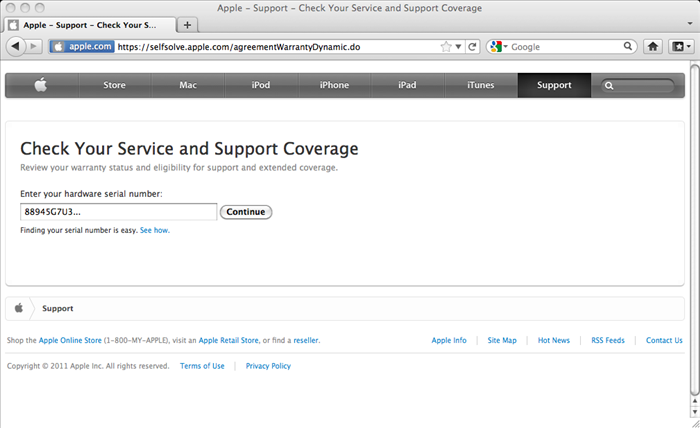
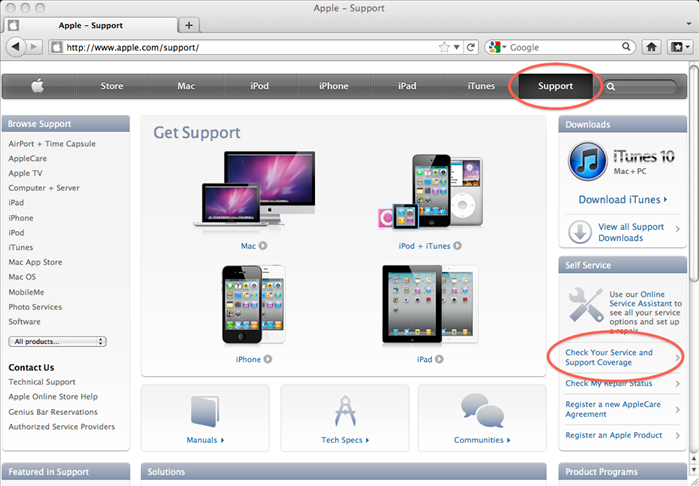
Once you have your serial number, the next step is to visit Apple's official coverage checker tool. Open your web browser and navigate to:
checkcoverage.apple.com
It's vital to use the official Apple website to ensure the security of your information and receive accurate results. Be wary of third-party websites that claim to offer warranty checks, as they may be unreliable or even malicious.
Always ensure you are on the official Apple website (checkcoverage.apple.com) to protect your personal and device information from phishing attempts.
Entering Your Serial Number and Verifying Coverage
On the Apple Coverage Check page, you'll see a field prompting you to 'Enter your serial number'.
1. Input the Serial Number: Carefully type or paste the serial number you located in the previous step into the designated field.
2. Complete the Captcha: You'll typically be asked to enter a security code to prove you're not a robot. Type this code into the provided box.
3. Submit: Click the 'Continue' or 'Submit' button to proceed.
The system will then process your request and display your device's coverage status.
Interpreting Your Apple Warranty Coverage Details
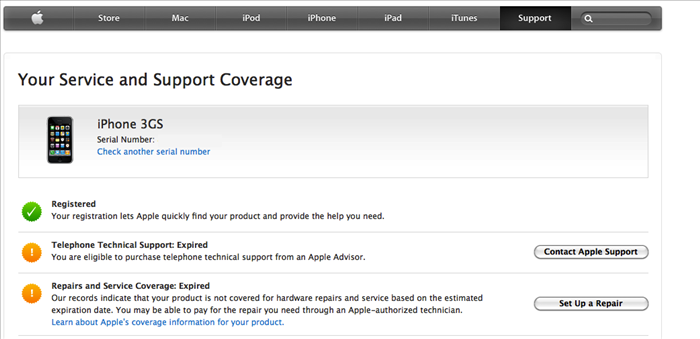
After submitting your serial number, the page will display several key pieces of information:
- Valid Purchase Date: Confirms that your product has a valid purchase date registered with Apple.
- Telephone Technical Support: Shows whether you're eligible for free telephone support and its expiration date. This is typically 90 days from purchase for most products.
- Repairs and Service Coverage: This is the most important section, indicating your warranty or AppleCare coverage status.
- Active: Your device is currently covered for hardware repairs and service. It will show an estimated expiration date.
- Expired: Your coverage has ended. The date it expired will be listed.
- AppleCare+: If you purchased AppleCare+, it will be noted here along with its specific benefits and expiration date, which usually extends beyond the standard warranty.
Carefully review all dates and statuses to understand your full coverage.
Options for Expired Warranties and Beyond
If your Apple product's warranty has expired, don't despair! You still have several options:
- Official Apple Out-of-Warranty Repair: Apple provides paid repair services for devices outside their warranty period. While these can be more expensive, they guarantee genuine Apple parts and certified technicians.
- Third-Party Repair Shops: Reputable independent repair shops can often fix issues at a lower cost. However, be cautious and research thoroughly, as non-genuine parts or improper repairs can sometimes cause further issues or void future Apple service eligibility.
- Trade-in or Recycling: For older devices, consider Apple's trade-in program, which can offer credit towards a new device. Alternatively, ensure you responsibly recycle electronics to minimize environmental impact.
- Self-Help Resources: Apple's support website offers extensive troubleshooting guides and FAQs that might help you resolve minor issues independently.
Frequently Asked Questions (FAQ)
Here are answers to some common questions about Apple product warranties:
Q: Can I check my Apple warranty without a receipt?
A: Yes, absolutely! As long as you have the serial number, you can check the warranty status on Apple's coverage website without needing a physical receipt.
Q: How do I check the warranty if my device isn't turning on?
A: If your device won't power on, try to find the serial number on its physical casing, original packaging, or a purchase receipt. If you previously linked the device to your Apple ID, you might find it on your Apple ID account page.
Q: What's the difference between AppleCare and AppleCare+?
A: AppleCare typically refers to the extended service and support plan for Mac and Apple Display products. AppleCare+ is for iPhone, iPad, Apple Watch, and Apple TV, and it includes accidental damage coverage (with a service fee) in addition to extended hardware coverage and technical support.
Q: Does Apple warranty cover accidental damage?
A: The standard Apple Limited Warranty does NOT cover accidental damage. Accidental damage coverage is typically only included if you've purchased AppleCare+.
Q: What if the purchase date is incorrect?
A: If the purchase date displayed is incorrect, you can contact Apple Support directly. They may ask for proof of purchase to update the date in their records.
Knowing your Apple product's warranty status is a simple yet powerful way to manage your devices effectively. By following these steps, you can quickly determine your coverage and make informed decisions about repairs, support, and future upgrades. Stay informed, stay covered!