Handbrake Tutorial: Convert Videos for iPhone, iPad & Apple TV (Easy Guide)
Unlock your media! Learn how to use Handbrake to easily convert DVDs and video files into formats perfect for your iPhone, iPad, iPod Touch, or Apple TV. Get optimal settings for quality playback.
Want to watch your favorite movies and videos on the go or on your Apple TV? Handbrake is a free, open-source video transcoder that makes converting media for your Apple devices incredibly simple. Whether you're digitizing your DVD collection or re-encoding video files, this tutorial will guide you through using Handbrake to get your content ready for iPhone, iPad, iPod Touch, and Apple TV. It's available for Windows, macOS, and Linux, making it a versatile tool for everyone.
- Handbrake Software: Download the latest version from the official Handbrake website (handbrake.fr).
- Source Video Files: Any common video file format (MP4, MKV, AVI, MOV, etc.) or a physical DVD/Blu-ray disc.
- Apple Device: Your iPhone, iPad, iPod Touch, or Apple TV where you intend to play the converted video.
- Sufficient Storage: Ensure your computer has enough free space for the converted files.
Step 1: Download and Install Handbrake
First, if you haven't already, download Handbrake from its official website (handbrake.fr). Choose the correct version for your operating system (Windows, macOS, or Linux). Once downloaded, run the installer and follow the on-screen prompts. The installation process is straightforward and typically takes only a few minutes.
Step 2: Load Your Source Video or DVD

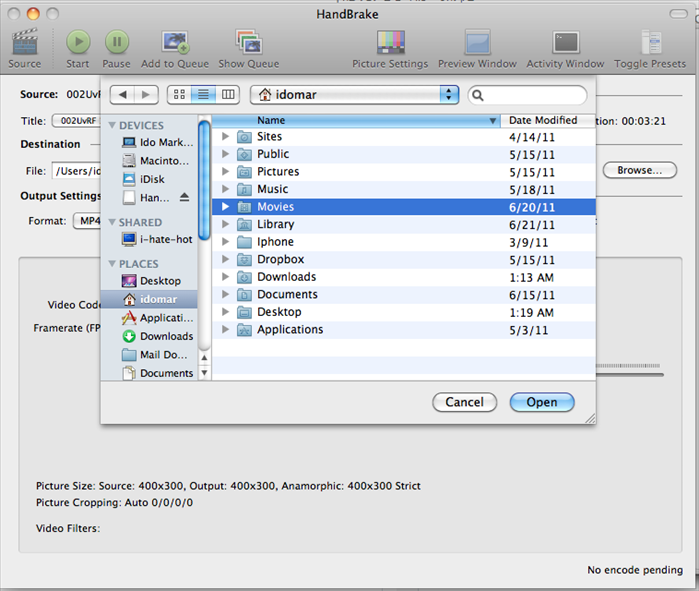
Open Handbrake. You'll see an 'Open Source' prompt. Click 'File' to select a single video file from your computer, or click 'Folder' to process multiple video files (for batch encoding). If you're converting a DVD or Blu-ray, insert the disc into your computer's optical drive, and Handbrake should detect it. Select the main title (usually the longest duration) from the 'Source' dropdown if converting a disc.
For DVDs, Handbrake usually identifies the main movie title automatically. If not, look for the title with the longest duration.
Step 3: Choose Your Output Settings and Preset
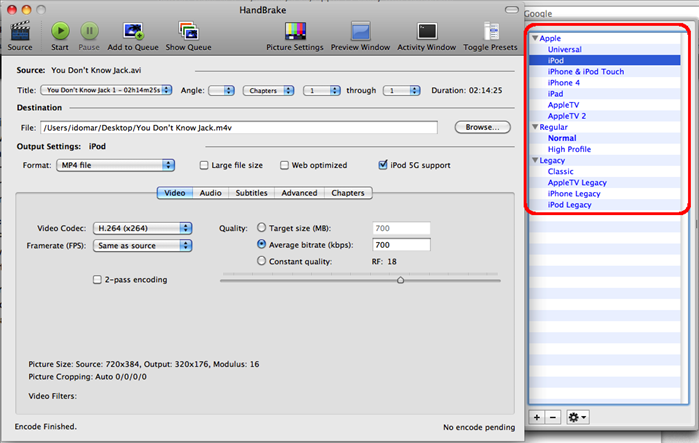
This is where Handbrake truly shines. On the right-hand side, you'll find a 'Presets' panel. For Apple devices, Handbrake offers excellent built-in presets that optimize quality and compatibility.
#### Selecting an Apple Preset:
1. General Presets: Under the 'General' category, you'll find options like 'Fast 1080p30' or 'Very Fast 720p30'. These are good starting points for modern devices.
2. Legacy Presets: Scroll down to the 'Legacy' section for specific presets like 'Apple 240p30 iPod', 'Apple 480p30 iPhone & iPod Touch', 'Apple 540p30 iPad', 'Apple 720p30 Apple TV', and 'Apple 1080p30 Apple TV'. Choose the one that best matches your target device and desired resolution. For newer iPhones/iPads, general 1080p or 720p presets often work best.
After selecting a preset, you can further customize settings if needed. The 'Summary' tab lets you pick the output format (MP4 is generally recommended for Apple devices).
#### Key Settings to Review (Optional):
- Dimensions: Adjust resolution if needed. 'Anamorphic' and 'Cropping' can be set to 'Automatic' for most cases.
- Filters: You can apply deinterlace or denoise filters, though often not necessary for good source material.
- Video: The 'Video Codec' should typically be H.264 (x264). 'Framerate' should match the source or be set to 'Same as Source'. 'Quality' (RF) setting: Lower numbers mean higher quality and larger file sizes. A value between 18-22 is a good balance for most needs.
- Audio: Select your preferred audio track from the source. AAC (CoreAudio) is standard for Apple devices. You can adjust the 'Bitrate' for quality, with 160-256 kbps being common for movies.
Be mindful of video quality settings. Very high quality settings will result in significantly larger file sizes and longer conversion times. Balance quality with your device's storage and playback capabilities.
Step 4: Select Destination and Start Encoding
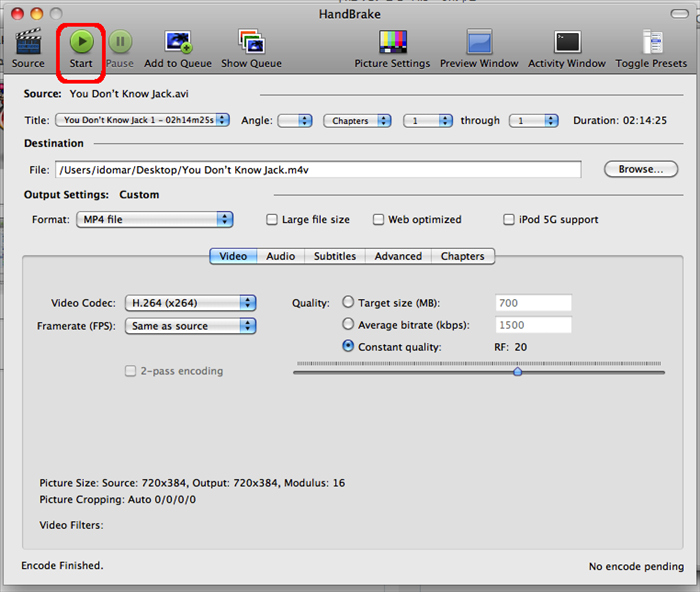
At the bottom of the Handbrake window, click the 'Browse...' button next to 'Save As' to choose where your converted file will be saved on your computer and what you want to name it. Make sure the file extension is .mp4. Once you've set the destination, click the large 'Start Encode' button (or 'Start Queue' if you've added multiple titles/files to a queue) at the top of the window. Handbrake will begin the conversion process, showing you a progress bar.
For converting multiple files or DVD titles, use the 'Add to Queue' button after setting up each source and its settings. Then, click 'Start Queue' to process them all sequentially.
Step 5: Transfer the Converted Video to Your Apple Device
Once Handbrake completes the encoding, locate your new MP4 file in the destination folder you selected. Now, you need to transfer it to your Apple device:
- For iPhone/iPad/iPod Touch (via computer): Connect your device to your computer. Open iTunes (on Windows or older macOS) or Finder (on macOS Catalina and later). Navigate to your device, then to the 'Movies' or 'TV Shows' section, and drag and drop your converted MP4 file into the media library. Sync your device to transfer the file.
- For Apple TV: If you have a computer running iTunes or the TV app with Home Sharing enabled, your Apple TV can stream content directly from your computer's library. Alternatively, you can use apps like Infuse or Plex that support network streaming, or transfer the file to a cloud service accessible by your Apple TV.
### Troubleshooting Common Issues
1. Conversion Fails/Stops: Ensure your source file isn't corrupted. Try restarting Handbrake and your computer. Check for sufficient disk space. Update Handbrake to the latest version.
2. Poor Quality/Pixelation: Increase the 'Quality' RF value (e.g., lower the number from 22 to 20 or 18) in the 'Video' tab. Ensure your source video is of good quality.
3. No Audio or Sync Issues: Verify the correct audio track was selected. Try a different audio codec (e.g., AC3 instead of AAC if available). Some old sources might require adjusting the 'Audio Gain'.
4. Handbrake Can't Read DVD: Some commercially encrypted DVDs require third-party libraries (like libdvdcss on older versions) for Handbrake to read them. Refer to Handbrake's documentation or community forums for the most up-to-date information on handling protected discs.
Converting copyrighted material, especially commercial DVDs, may have legal implications depending on your region. Always respect copyright laws.
With Handbrake, converting videos for your Apple devices is a breeze. By following these steps, you can enjoy your digital media library wherever you go, ensuring compatibility and optimal playback quality. Experiment with different presets and settings to find what works best for your specific needs and devices. Happy converting!