How to Find Your IP Address: Local and Public IP on All Devices
Learn how to find your local and public IP address on Windows, macOS, Linux, and mobile devices. Essential for network troubleshooting and setup.
What You'll Need
- how to find my IP address
- what is my IP address
- find my IP
- check IP address
- current IP address
- my computer IP
- public IP address
- local IP address
- where to find IP address
- how to find IP address on Windows 10
- how to find IP address on Mac
- how to find my public IP address
- how to find my local IP address
Understanding your IP address is crucial for various online activities, from basic network troubleshooting to advanced router configurations like port forwarding. Whether you're trying to set up a new device, diagnose connectivity issues, or simply curious about your network identity, knowing how to locate both your local and public IP addresses is a fundamental skill. This comprehensive guide will walk you through the process for Windows, macOS, Linux, and mobile devices, ensuring you can find this vital information no matter what platform you're using.
Understanding IP Addresses: Local vs. Public

An IP (Internet Protocol) address is a unique numerical label assigned to every device connected to a computer network that uses the Internet Protocol for communication. Think of it as your device's unique identifier on the internet or within your local network.
There are two main types of IP addresses you'll encounter:
- Local (Private) IP Address: This is the address your router assigns to your device within your home or office network. Devices on your internal network use these addresses to communicate with each other. For example, when your phone sends data to your smart TV, they use their local IP addresses. These addresses are not visible to the outside internet.
- Public (External) IP Address: This is the address assigned to your network by your Internet Service Provider (ISP). It's the address that the rest of the internet sees when your devices connect online. All devices within your network share the same public IP address when communicating with servers outside your local network. Knowing your public IP is often necessary for things like remote desktop access or setting up game servers.
Finding Your Public IP Address

Finding your public IP address is incredibly simple and can be done from any device with an internet connection. Your public IP is what the world sees, and it's not specific to your operating system, but rather to your entire network.
Method: Use a Web Browser
1. Open your preferred web browser (Chrome, Firefox, Safari, Edge, etc.).
2. Go to Google (or any search engine) and type "What is my IP address?" into the search bar.
3. Press Enter. Google will typically display your public IP address right at the top of the search results page.
Alternatively, you can visit dedicated IP lookup websites. Some popular options include:
- WhatIsMyIP.com
- IPChicken.com
- whatismyipaddress.com
These sites provide a straightforward display of your public IP address, often along with additional information like your ISP and approximate geographical location.
Your public IP address can change over time, especially if your ISP assigns dynamic IP addresses. If you need a static IP address for a specific service, you might need to contact your ISP or consider a business internet plan.
Finding Your Local IP Address on Windows

To find your local IP address on a Windows PC, you have a couple of straightforward options:
Method 1: Using Command Prompt (Recommended for speed)
1. Open Command Prompt:
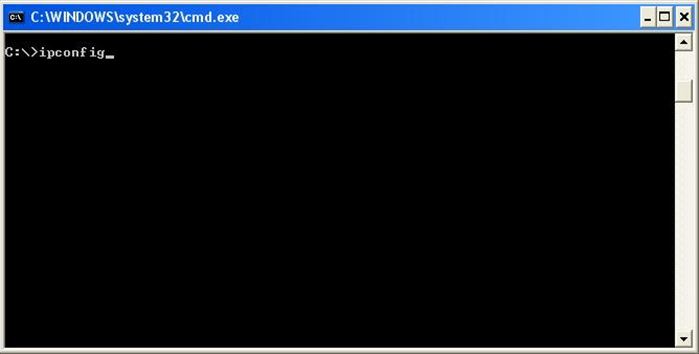
- Press the Windows key + R to open the Run dialog.
- Type
cmdand press Enter. - Alternatively, search for "Command Prompt" in the Start menu and click to open it.
2. Type the command: In the Command Prompt window, type ipconfig and press Enter.
3. Locate your IP: Look for your active network adapter (e.g., "Ethernet adapter Ethernet" or "Wireless LAN adapter Wi-Fi"). Under its details, you'll find "IPv4 Address," followed by a series of numbers (e.g., 192.168.1.100). This is your local IP address.
Method 2: Through Network Settings (Graphical Interface)
1. Open Settings: Click the Start button, then select Settings (the gear icon).
2. Go to Network & Internet: In the Settings window, click on "Network & Internet."
3. View Network Properties:
- If you're on Wi-Fi, click "Wi-Fi" in the left pane, then click on your connected network name.
- If you're on Ethernet, click "Ethernet" in the left pane, then click on your connected network name.
4. Find your IP: Scroll down to "Properties" or "IP settings" and locate the "IPv4 address" entry. This is your local IP address.
Finding Your Local IP Address on macOS

On a Mac, you can find your local IP address through System Settings (or System Preferences on older versions) or the Terminal.
Method 1: Using System Settings (macOS Ventura and later)
1. Open System Settings: Click the Apple menu in the top-left corner, then select "System Settings."
2. Go to Network: In the sidebar, click on "Network."
3. Select your connection: Choose your active network connection (e.g., "Wi-Fi" or "Ethernet") from the list.
4. View IP Address: Your local IP address will be displayed next to "IP Address."
Method 2: Using System Preferences (macOS Monterey and earlier)
1. Open System Preferences: Click the Apple menu, then select "System Preferences."
2. Go to Network: Click on the "Network" icon.
3. Select your connection: In the sidebar, select your active network connection (e.g., "Wi-Fi" or "Ethernet").
4. View IP Address: Your local IP address will be displayed under the status, often next to "IP Address." You might need to click "Advanced..." for more details.
Method 3: Using Terminal
1. Open Terminal: Go to Applications > Utilities > Terminal.
2. Type the command: Type ifconfig or ipconfig getifaddr en0 (for Ethernet) or ipconfig getifaddr en1 (for Wi-Fi) and press Enter.
3. Locate your IP: Look for the inet address under your active network interface (e.g., en0 for Ethernet, en1 for Wi-Fi).
Finding Your Local IP Address on Linux
Linux users typically find their local IP address using terminal commands, though graphical interfaces also provide the information.
Method 1: Using the Terminal (Recommended)
1. Open Terminal: Use the shortcut Ctrl + Alt + T or find it in your applications menu.
2. Type ip addr show (Modern Linux distributions): This command provides detailed network interface information. Look for your active interface (e.g., eth0 for Ethernet, wlan0 for Wi-Fi) and find the inet address.
3. Alternatively, type ifconfig (Older Linux distributions or if ip addr doesn't work): Similar to ip addr show, ifconfig will list network interfaces. Look for the inet addr field under your active interface.
Method 2: Using Graphical Interface (Gnome, KDE, etc.)
1. Open Network Settings: Typically found in your system's settings menu (e.g., "Settings" -> "Network" or "Network Connections").
2. Select your connection: Click on your active wired or wireless connection.
3. View Details: Look for a "Details" or "IPv4" tab/section where your IP address will be listed.
Finding Your Local IP Address on Mobile Devices (iOS & Android)
Finding your local IP address on smartphones and tablets is quick and easy.
On iOS (iPhone/iPad):
1. Open Settings: Tap the "Settings" app icon.
2. Go to Wi-Fi: Tap on "Wi-Fi."
3. Tap the "i" icon: Tap the blue "i" icon next to the Wi-Fi network you are currently connected to.
4. View IP Address: Your local IP address will be displayed under the "IPv4 Address" section.
On Android:
1. Open Settings: Swipe down from the top of your screen and tap the gear icon, or find the "Settings" app in your app drawer.
2. Go to Network & Internet / Connections: The exact path may vary slightly by Android version and manufacturer, but look for options like "Network & internet," "Connections," or "Wi-Fi."
3. Tap on Wi-Fi: Select "Wi-Fi."
4. Tap on your connected network: Tap on the name of the Wi-Fi network you are currently connected to.
5. View IP Address: You may need to scroll down or tap "Advanced" to see your local IP address, which will be listed as "IP address" or "IPv4 address."
Be cautious when sharing your public IP address, as it can be used to identify your general location and could potentially be exploited by malicious actors. Only share it with trusted individuals or services when absolutely necessary.
Troubleshooting Common IP Address Issues
Here are answers to some frequently asked questions and common issues related to IP addresses:
- My IP address changed, why? Most ISPs assign dynamic IP addresses, meaning your public IP can change periodically (e.g., when your router restarts). If you need a consistent IP, consider a static IP from your ISP.
- What if I have multiple IP addresses? Your device might have multiple IP addresses if it's connected to multiple networks simultaneously (e.g., Wi-Fi and Ethernet) or if it supports both IPv4 and IPv6 protocols. Each active connection will have its own local IP.
- How to renew your IP address?
- Windows: Open Command Prompt and type
ipconfig /releasefollowed byipconfig /renew. - macOS/Linux: You can often renew your IP by disconnecting and reconnecting to your network, or by restarting your router.
- Router Restart: A simple router restart often forces a new public and local IP assignment (though not guaranteed for public IP).
- Can two devices have the same local IP address? No, within the same local network, each device must have a unique local IP address to avoid conflicts. Your router is responsible for assigning these unique addresses.
Knowing how to find your IP address is a fundamental skill for anyone managing their home network or troubleshooting internet issues. With the methods outlined above, you can confidently locate both your local and public IP addresses on virtually any device. This knowledge empowers you to better understand and control your network environment, facilitating everything from simple connectivity checks to more complex network configurations. Keep these steps handy for your next DIY tech adventure!