Optimal Facebook Photo Sizes & Dimensions for Profile Pictures, Cover Photos, and Posts
Master Facebook photo sizes! Get exact dimensions for profile pictures, cover photos, and posts on desktop & mobile, plus optimization tips for perfect uploads.
What You'll Need
- **Minimum upload size:** 320 x 320 pixels
- **Recommended upload size for best quality:** 720 x 720 pixels or 960 x 960 pixels (Facebook will scale down)
- **Displays on desktop:** 170 x 170 pixels
- **Displays on smartphones:** 128 x 128 pixels
- **Displays in comments/small icons:** 36 x 36 pixels
- **Recommended upload size:** 820 x 312 pixels
- **Displays on desktop:** 820 x 312 pixels
- **Displays on smartphones:** 640 x 360 pixels
- **Minimum size:** 400 x 150 pixels
- **In-Feed Photo Posts (Square):** 1080 x 1080 pixels (or anything with a 1:1 aspect ratio, minimum 600 x 600 pixels)
- **In-Feed Photo Posts (Landscape):** 1200 x 630 pixels (recommended for 1.91:1 aspect ratio)
- **In-Feed Photo Posts (Portrait):** 630 x 1200 pixels (recommended for 2:3 aspect ratio)
- **Shared Link Images:** 1200 x 628 pixels (Facebook will often pull an image from the linked page and crop it to this 1.91:1 aspect ratio)
- **Facebook Event Cover Photo:** 1920 x 1005 pixels (1.91:1 aspect ratio)
- **Facebook Story Images/Videos:** 1080 x 1920 pixels (full-screen vertical, 9:16 aspect ratio)
Uploading images to Facebook can be a frustrating experience if you don't know the optimal dimensions. Whether it's a crisp profile picture, a striking cover photo, or an engaging post, using the right sizes ensures your visuals look their best, preventing pixelation, awkward cropping, or blurry displays. This comprehensive guide provides you with all the up-to-date Facebook photo sizes for 2024 and beyond, along with essential tips for optimizing your images.
Understanding Facebook Image Basics: Why Dimensions Matter
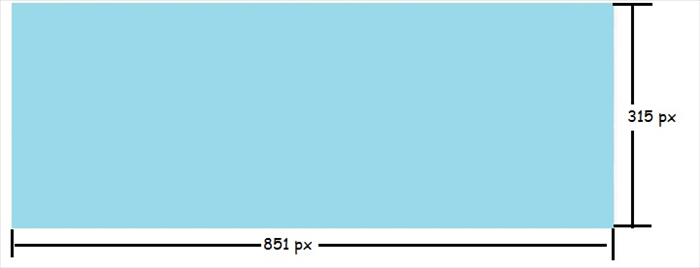
Facebook handles millions of images daily, automatically scaling and compressing them to fit various devices and screen sizes. While convenient, this process can degrade image quality if your original upload doesn't meet certain standards. Incorrect dimensions often lead to your images being cropped in undesirable ways or appearing pixelated and unprofessional. Knowing the recommended pixel dimensions ensures your content is displayed as intended, maintaining clarity and impact across desktops, laptops, and mobile devices.
Facebook Profile Picture Sizes: Desktop & Mobile
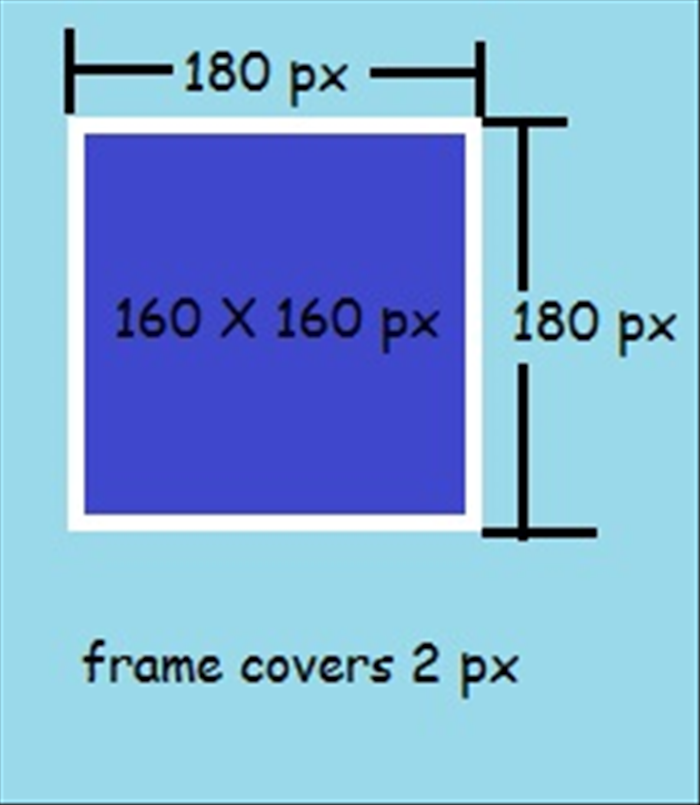
Your profile picture is often the first impression you make on Facebook. It's displayed in a square format but rendered as a circle in many contexts (like comments and reactions). Getting the dimensions right ensures it looks sharp everywhere.
Here are the key dimensions for Facebook profile pictures:
Always upload a square image. Although it displays as a circle, Facebook still uses the square dimensions internally. Make sure your main subject is centered to avoid being cropped out of the circular display.
Facebook Cover Photo Sizes: Desktop, Mobile & Safe Zones
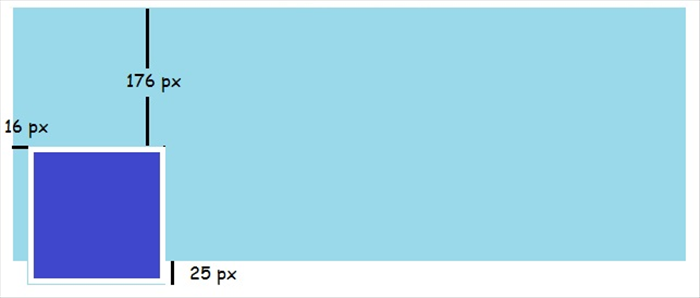
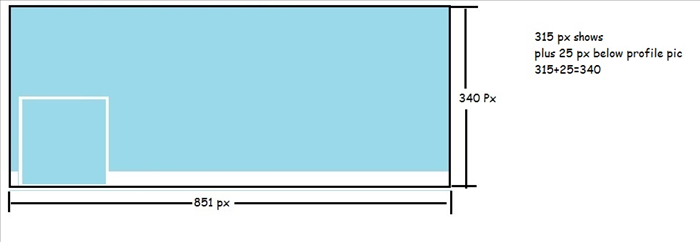
The Facebook cover photo is a prominent visual element at the top of your profile or page. Its display is highly responsive, meaning it will appear differently on desktop and mobile devices. Designing with 'safe zones' in mind is crucial to ensure important text and imagery aren't cut off.
Here are the optimal dimensions for Facebook cover photos:
Understanding Safe Zones: The trickiest part of cover photos is the mobile display. When designing, focus your most important content (logos, text, faces) within the central area. The central 560 x 312 pixels will always be visible on both desktop and mobile. The outer 130 pixels on each side (left/right) of the 820px width will be cropped on mobile, and the top/bottom edges will extend, making the image taller (360px vs 312px) but narrower (640px vs 820px).
Facebook Post & Event Image Dimensions

Images within your feed posts, event banners, or shared links are vital for engagement. Using correct dimensions here helps your content stand out and encourages clicks and shares.
Optimal sizes for common Facebook image types:
For images with text, using PNG format can help preserve text crispness compared to JPG.
Optimizing Your Images for Facebook: File Types, Compression & Quality
Beyond dimensions, how you prepare your images before uploading significantly impacts their final appearance on Facebook. Proper optimization helps counteract Facebook's inherent compression and scaling.
<ul><li>File Formats: Use JPG for photographs and complex images. Use PNG for graphics, images with text, or those requiring transparency. PNGs generally offer better quality for text and sharp edges.</li><li>Compression: While Facebook compresses images, you can help by pre-optimizing. Use image editing software (like Photoshop, GIMP, or online tools) to save images for the web, reducing their file size without drastic quality loss. Aim for a file size under 1MB where possible, especially for cover and profile photos.</li><li>Quality & Resolution: Always start with a high-resolution source image. Even if Facebook scales it down, starting with a sharp, high-quality image provides the best possible foundation. Avoid uploading images that are already blurry or heavily compressed, as Facebook's processing will only exacerbate these issues.</li><li>Color Profile: For best results, save your images in the sRGB color profile.</li></ul>
How to Upload & Change Your Facebook Profile Picture or Cover Photo
Updating your profile or cover photo is straightforward, but here's a quick guide to make sure you get it right.
Changing Your Profile Picture:
<ol><li>Go to your profile page.</li><li>Hover over your current profile picture. A 'Update Profile Picture' button will appear.</li><li>Click the button. You can choose to 'Upload Photo', 'Add Frame', or 'Take Photo'.</li><li>If uploading, select your pre-optimized image from your computer.</li><li>Adjust the crop if necessary (remember it will be circular in display), then click 'Save'.</li></ol>
Changing Your Cover Photo:
<ol><li>Go to your profile page.</li><li>Hover over your current cover photo. A 'Add Cover Photo' or 'Update Cover Photo' button will appear.</li><li>Click the button. You can choose to 'Upload Photo', 'Choose from Photos' (existing Facebook photos), or 'Create Collage'.</li><li>If uploading, select your pre-optimized image.</li><li>Drag the photo to reposition it for the best fit across desktop and mobile views, then click 'Save Changes'.</li></ol>
If your photo isn't displaying correctly after upload, try clearing your browser's cache and cookies, or try a different browser. Double-check your image dimensions against the recommended sizes.
Mastering Facebook photo sizes and optimization is a small effort that yields significant results. By understanding these dimensions and following the tips outlined, you can ensure your personal profile or business page always looks professional and engaging, making the most of your visual content on the platform.