How to add a drop shadow in Photoshop
This guide will show you how easy it is to give an object or image a simple impression of depth by adding a drop shadow in Photoshop
Easy 9,689 views
What You'll Need
- drop shadow
- photoshop
- depth
- scrapbooking
Steps
- 1
Step 1
 For this guide you need Photoshop and an image to work with
 - 2
Step 2
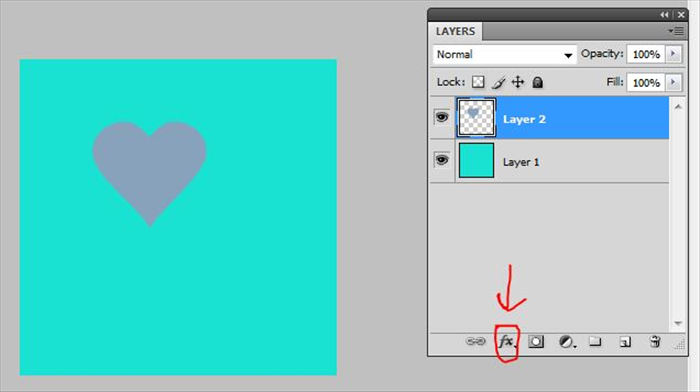 Click on the layer with the image on it to selected it. The layer color will be highlighted Click on fx at the bottom of the layers window
 -
- 3
Step 3
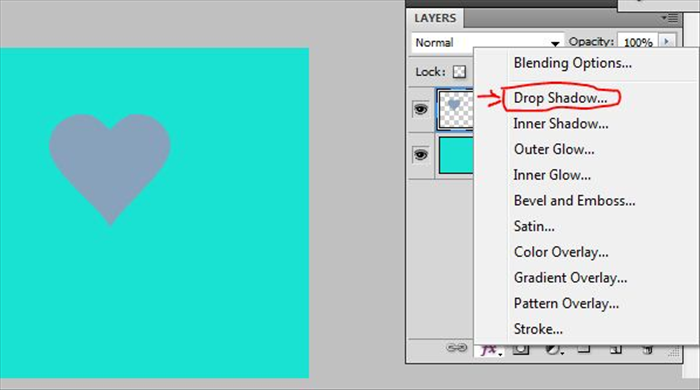 A menu will appear Click on Drop Shadow
 - 4
Step 4
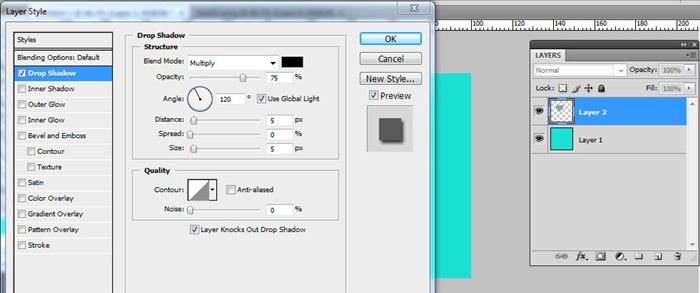 A new window will open You can use the settings I have used or choose your own Then click OK
 - 5
Step 5
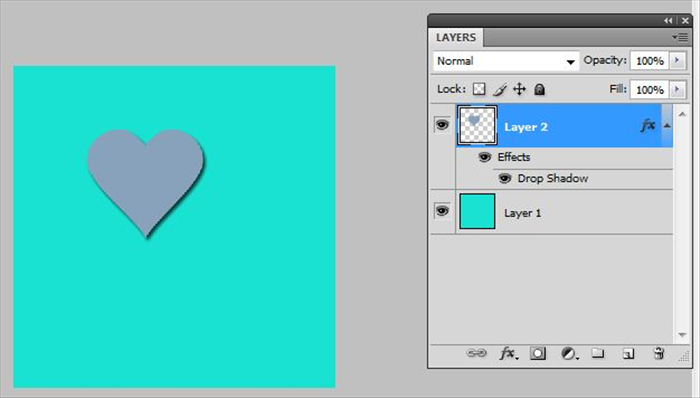 The selected image will now have a drop shadow Enjoy!