How to Change Your Google Chrome Theme & Background
Personalize your Chrome browser! Learn easy steps to change themes, customize backgrounds, and make your browsing experience uniquely yours.
What You'll Need
- Change Google Chrome Theme
- Customize Chrome Background
- Google Chrome Themes
- How to Change Chrome Background
- Chrome Browser Customization
- Personalize Chrome Appearance
- Set Custom Chrome Theme
- Install Google Chrome Theme
- Chrome Theme Settings
- How to change Google Chrome background picture
- Where to find free themes for Google Chrome
- Easy steps to change theme on Chrome
- Customize Google Chrome new tab background
Your web browser is more than just a tool for navigating the internet; it's a window into your digital world. Google Chrome offers robust customization options, allowing you to personalize its appearance to match your style or mood. Whether you want to install a vibrant theme from the Chrome Web Store or set a cherished photo as your new tab background, transforming your browser's look is simple. This guide will walk you through each step, making it easy to create a browsing experience that's uniquely yours.
Access Chrome Customization Settings
Before you can begin personalizing your Chrome browser, you'll need to open the customization panel. This can be done in two main ways, both quick and easy.
On a new tab page, look for the 'Customize Chrome' icon in the bottom-right corner. It typically looks like a small pencil or a gear. Clicking this will instantly open the customization menu.
Alternatively, you can access these settings through Chrome's main menu. Click the three vertical dots (More options) in the top-right corner of your browser, select 'Settings,' then navigate to the 'Appearance' section in the left sidebar.
Using the 'Customize Chrome' pencil icon on a new tab is the quickest way to access most of the background and theme options. The 'Settings > Appearance' route offers more granular control, including options to reset your browser's appearance.
Choose and Apply a New Theme from the Chrome Web Store

Themes in Google Chrome change the overall look of your browser, including the frame, new tab page, and toolbar. They offer a complete visual overhaul.
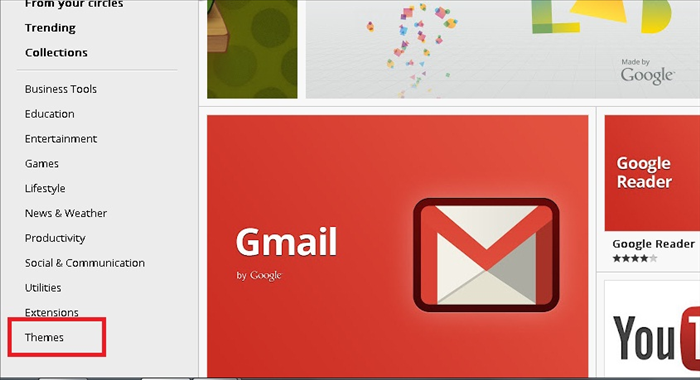
From the 'Customize Chrome' panel (pencil icon), select 'Theme' or, if in Settings, click on 'Themes' under the Appearance section. This will open the Chrome Web Store in a new tab, specifically to the 'Themes' section.
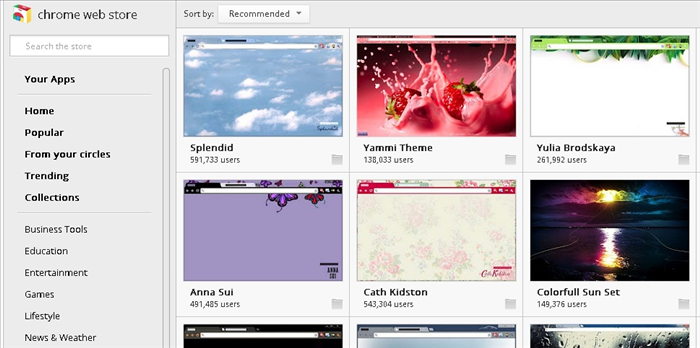
Browse through the extensive collection of themes available. You can use the search bar, filter by category, or explore featured themes. Once you find a theme you like, click on its thumbnail to see more details.
On the theme's detail page, click the blue 'Add to Chrome' button. Chrome will automatically download and apply the theme to your browser. You'll see the change instantly.
Most themes are free, but some designers offer premium options. Always check user reviews and ratings before installing a new theme to ensure it's high quality and doesn't cause any issues.
Customize Your New Tab Page Background
Beyond themes, you can specifically customize the background image that appears on your New Tab page, giving it a personal touch without changing the entire browser theme.
Open a new tab page and click the 'Customize Chrome' pencil icon. In the customization panel, select the 'Background' option.
You'll see a variety of curated image collections provided by Chrome, such as 'Landscapes,' 'Art,' or 'Solid colors.' Click on a collection to view its images. If you prefer to use your own photo, click 'Upload From Device' to browse your computer for an image file.
Once you've selected an image (either from a collection or your device), click 'Done' in the customization panel to apply it. Your New Tab page will immediately update with your chosen background.
For custom uploads, make sure your image has a high resolution for the best appearance, especially if you have a large monitor. Common image formats like JPG, PNG, and GIF are supported.
Revert to Default Theme or Remove Custom Background (Optional)
If you ever want to go back to Chrome's original look or simply remove a custom background, it's easy to do.
To revert to the default Chrome theme, open your browser's settings by clicking the three vertical dots > 'Settings' > 'Appearance.' Under 'Theme,' you'll see an option that says 'Reset to default.' Click this, and your browser will return to its standard appearance.
To remove a custom New Tab page background, open a new tab and click the 'Customize Chrome' pencil icon. Go to the 'Background' section. You can then select 'No background' or choose an option like 'Restore default background' if available in your current Chrome version.
Personalizing your Google Chrome browser with custom themes and backgrounds is a great way to make your daily browsing experience more enjoyable and reflective of your personality. With these simple steps, you can easily switch up your browser's look whenever you feel like a change. Keep exploring the Chrome Web Store for new themes, or frequently update your New Tab page with fresh images. Happy browsing!