How to make a Piet Mondrian style picture with Inkscape
This is a very easy way to create Mondrian style pictures with Inkscape
What You'll Need
- Inkscape
- Piet Mondrian
- Mondrian
- modern art
- cards
- paintings
- arts and crafts
- graphic design
Tips
If you resize existing boxes their outline widths may change. It is easiest to just draw new boxes on top of it.
Steps
- 1
Step 1
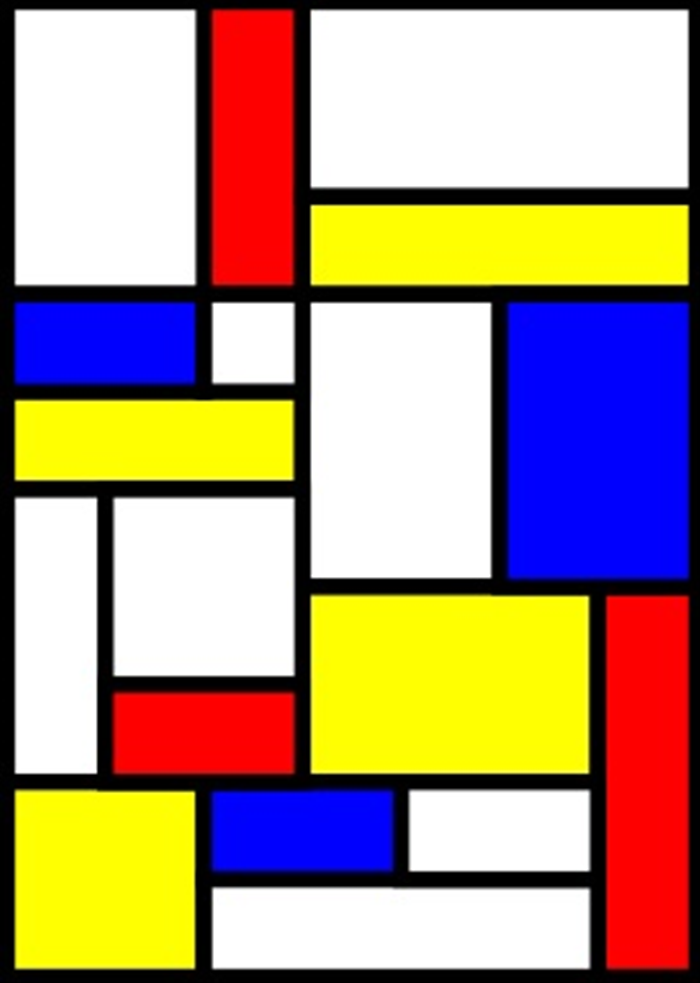
1. Use Inkscape to create as many rectangles with any width and color outlines and fills of your choice.
- 2
Step 2
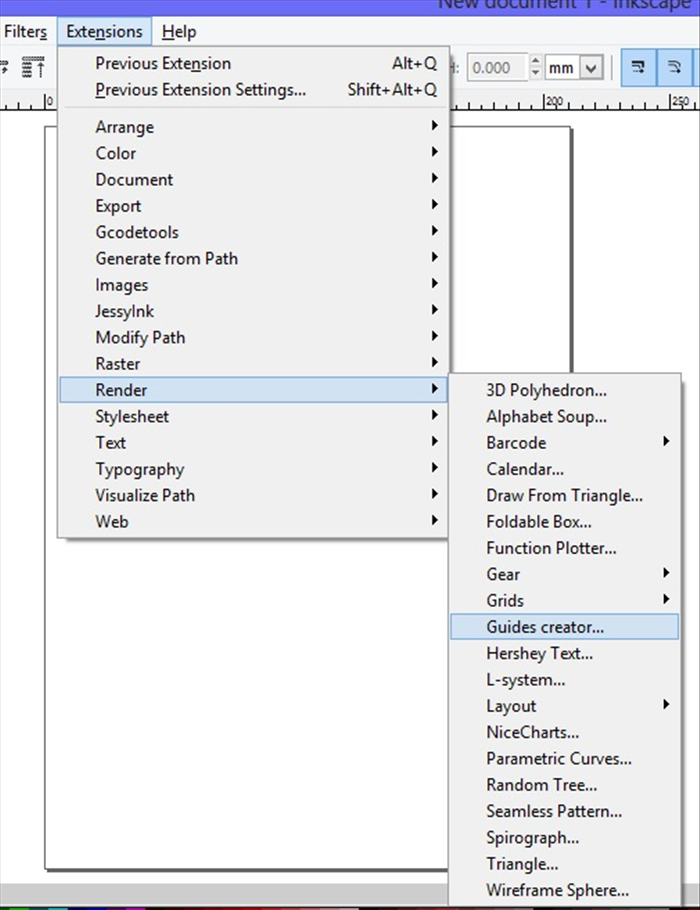
2. Open a new document. Click on Extensions - Render - Guide creator.
-
- 3
Step 3
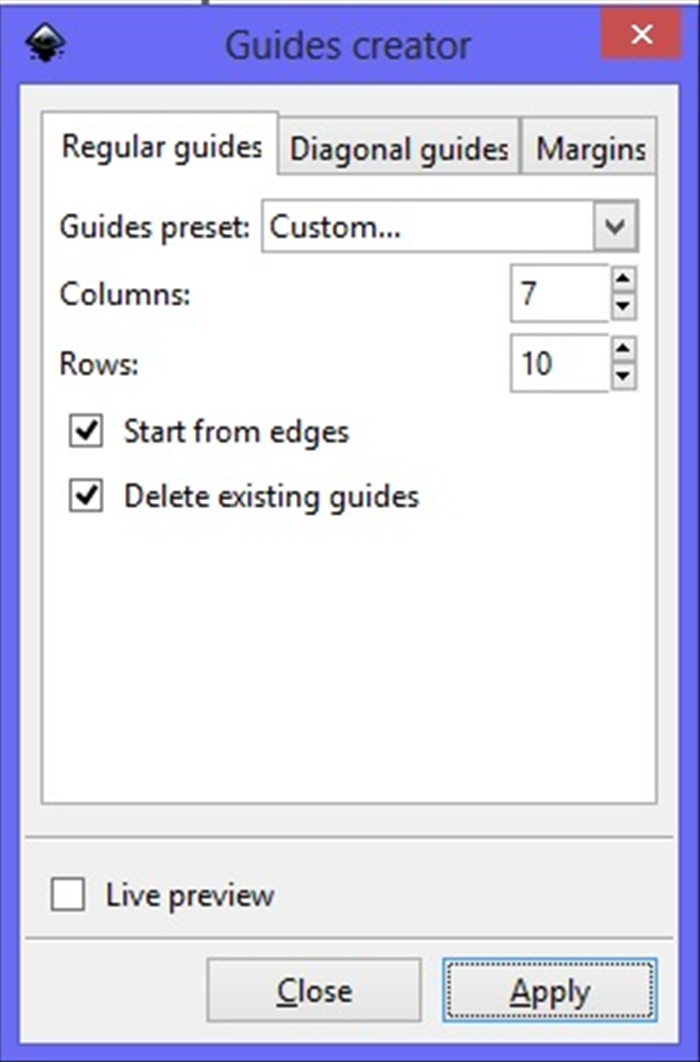
3. Change the number of Columns to 7 and Rows to 10. Check mark next to - Start from edges and Delete existing guides Click Apply then the X box on the top right corner
- 4
Step 4
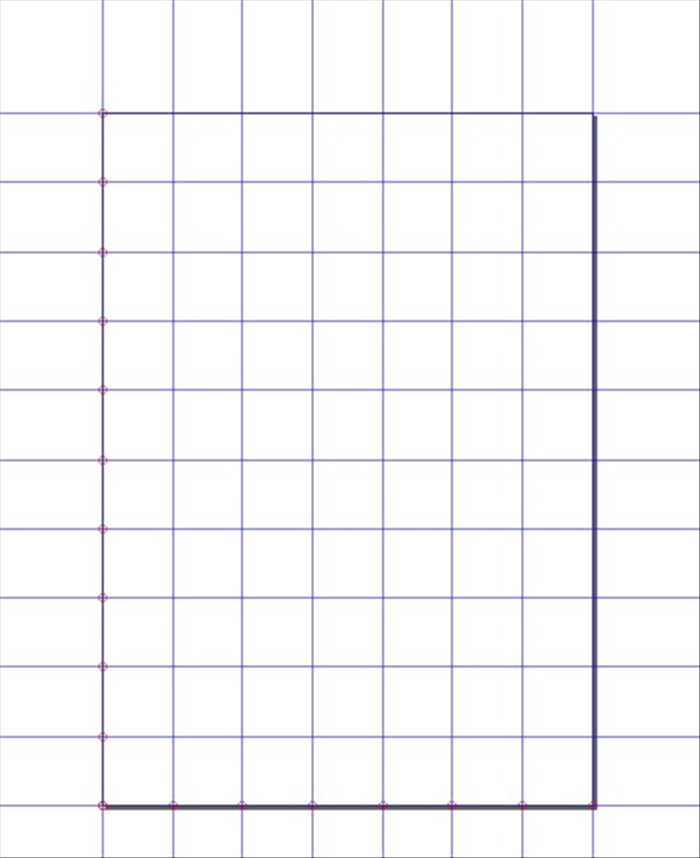
4. Result.
- 5
Step 5
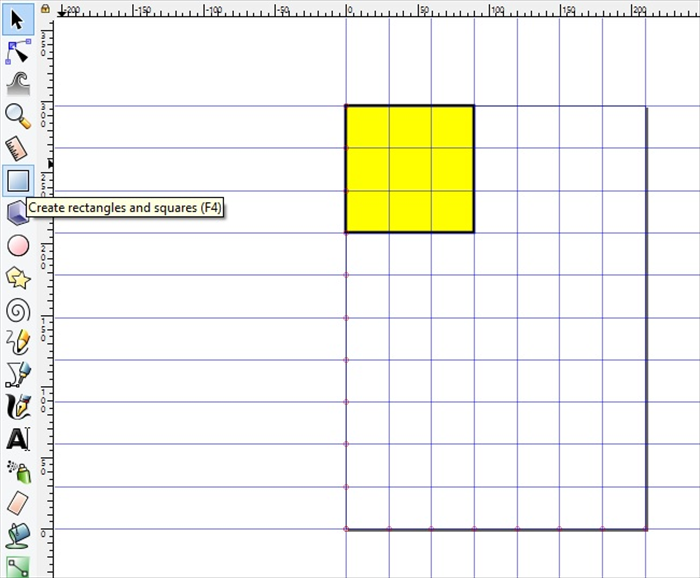
5. Click - Create rectangles and squares. Drag a rectangle. * The color and line width will be the same as the last used. You can chage that later.
- 6
Step 6
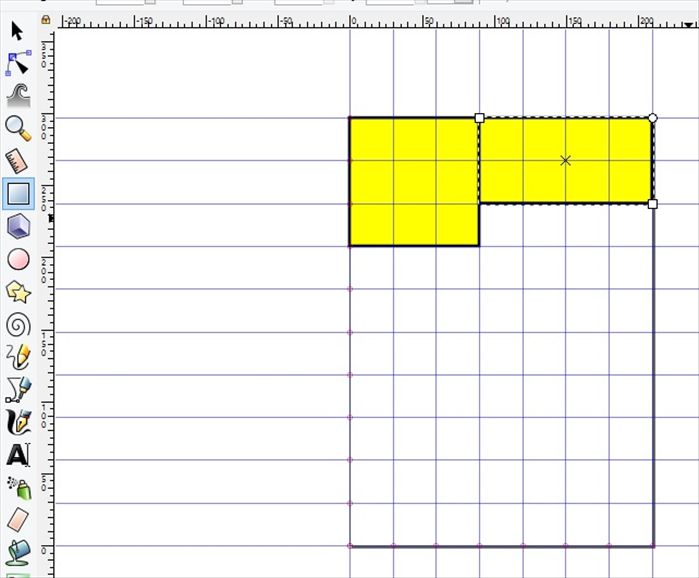
6. Create another rectangle.
- 7
Step 7
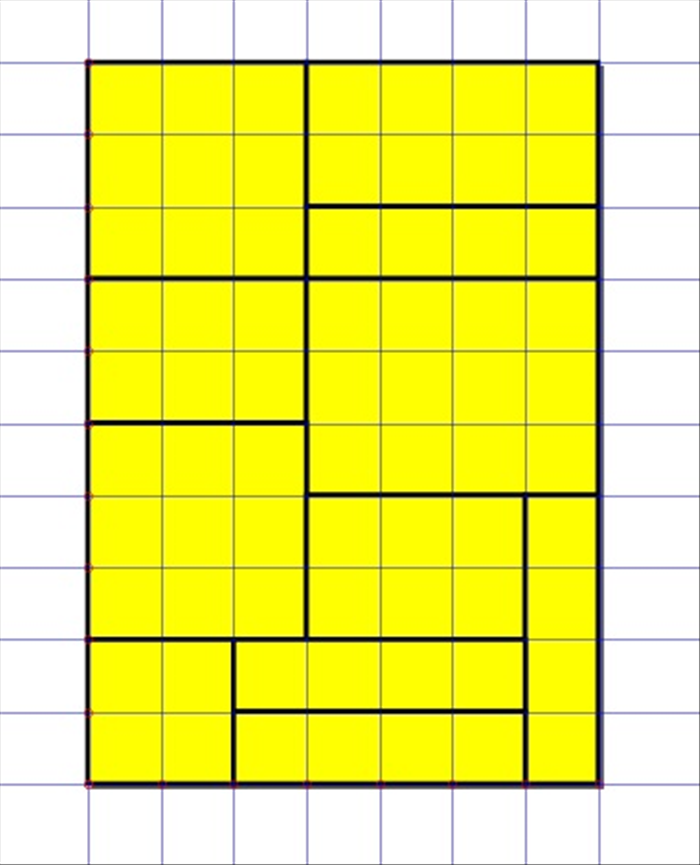
7. Fill the page with rectangles.
- 8
Step 8
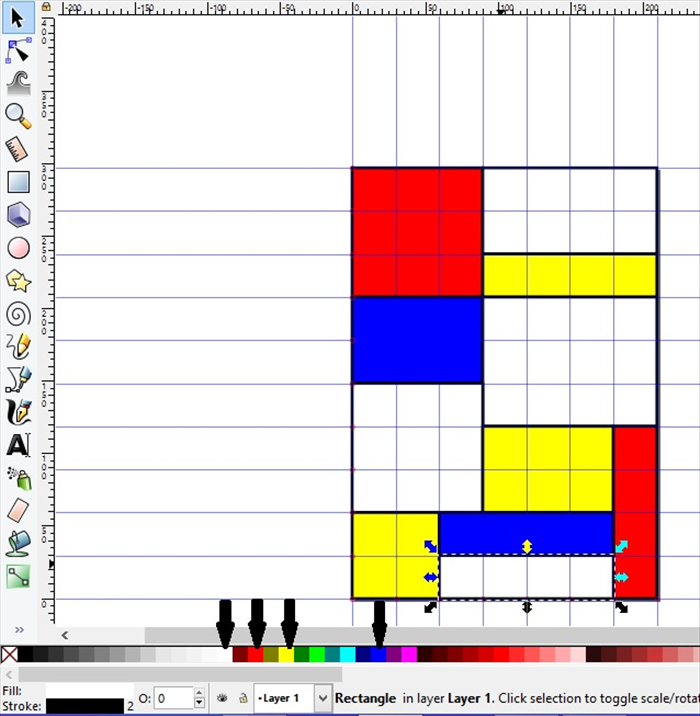
8. Select a box. Click on the color menu to change the fill color.
- 9
Step 9
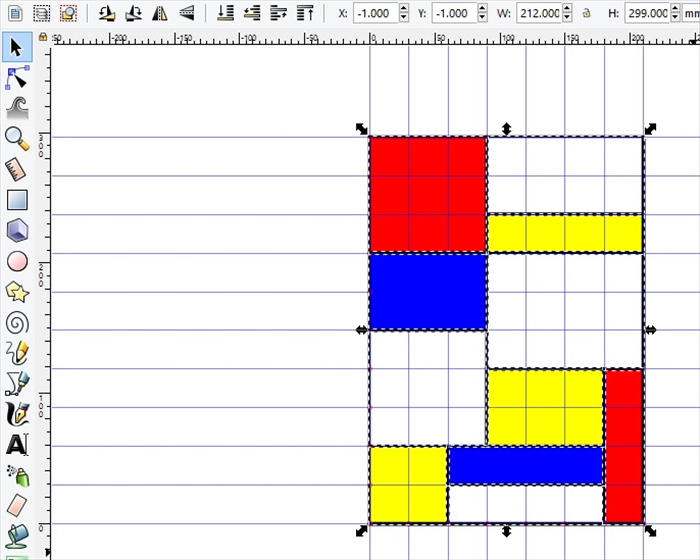
9. Drag the select box around the whole page to select all the boxes.
- 10
Step 10
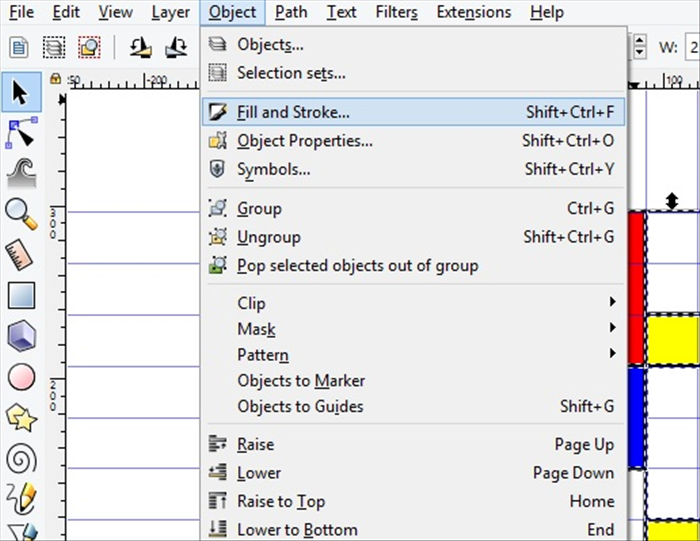
10. Open the fill and stroke menu.
- 11
Step 11
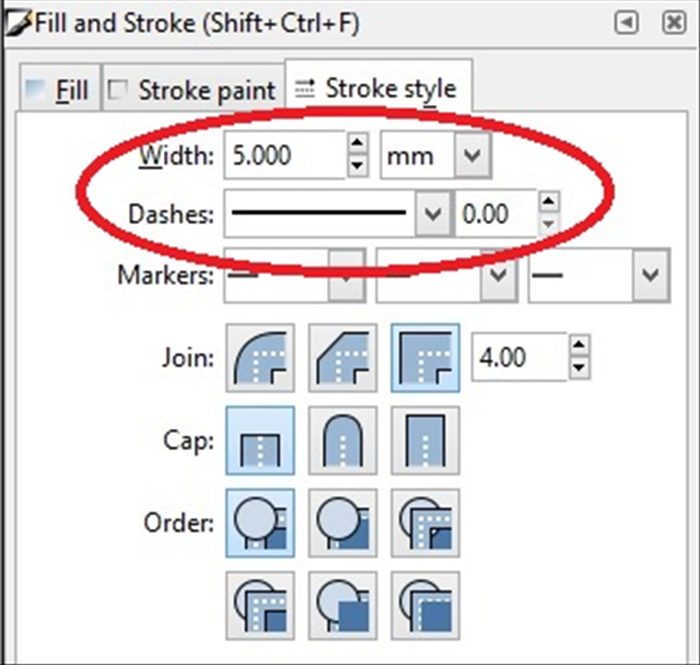
11. Click on the Stroke style tab. Change the width to 5 mm . * You can experiment with different widths.
- 12
Step 12
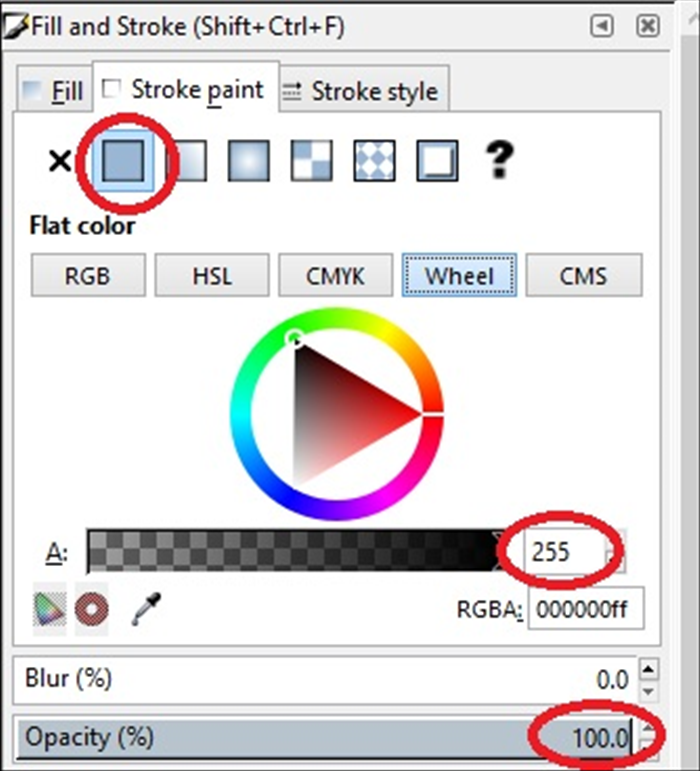
12. Click on the Stroke paint tab to change the outline colors on the boxes.
- 13
Step 13
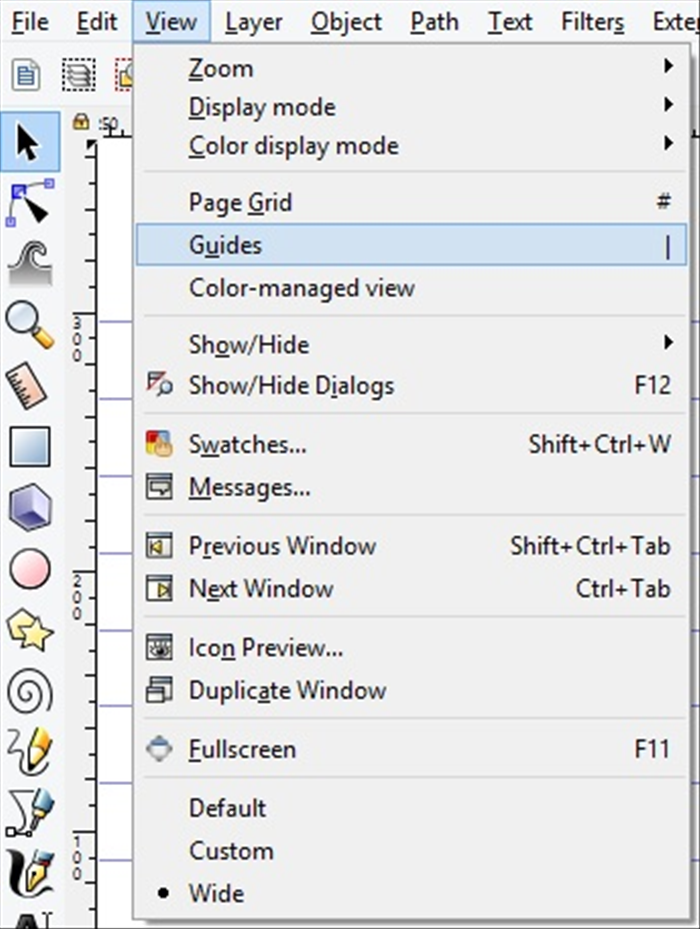
13. Click - View - Guides to remove guidelines. Click it again to see the guidelines.
- 14
Step 14
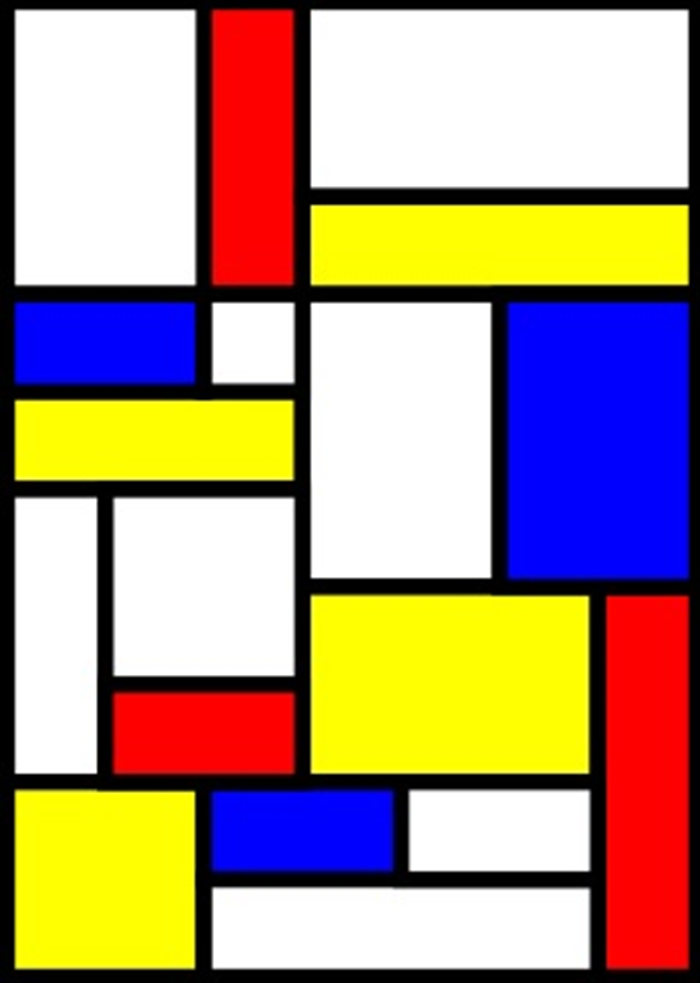
14. You can add more boxes , change their outline widths and fill colors. Enjoy experimenting and creating!