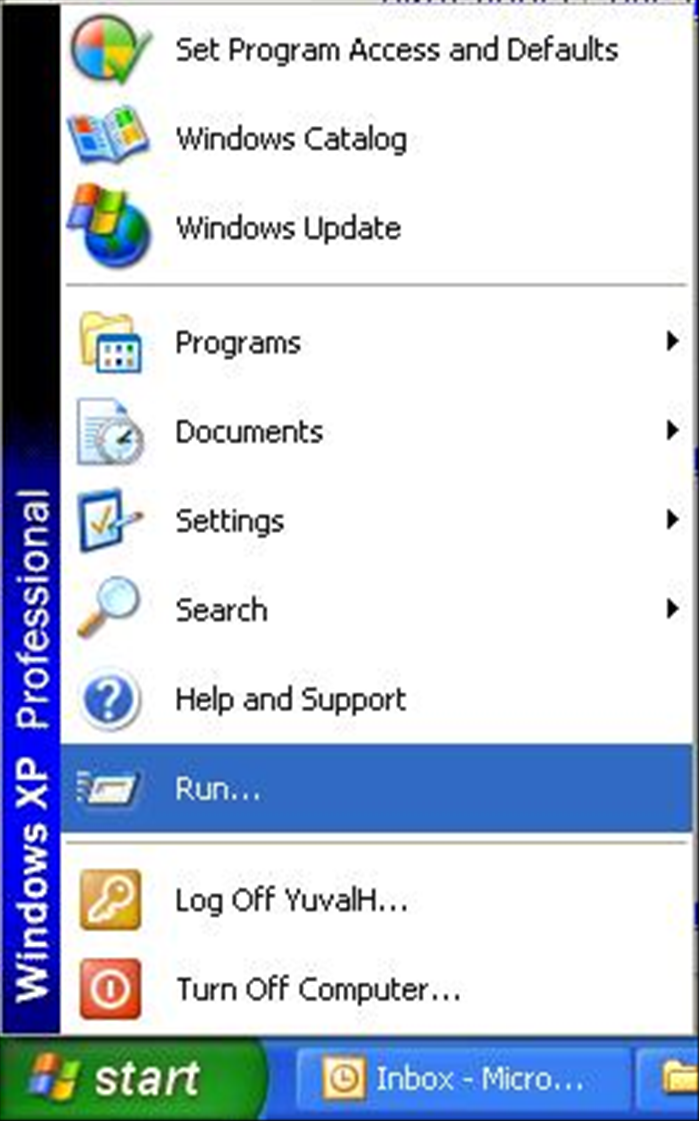
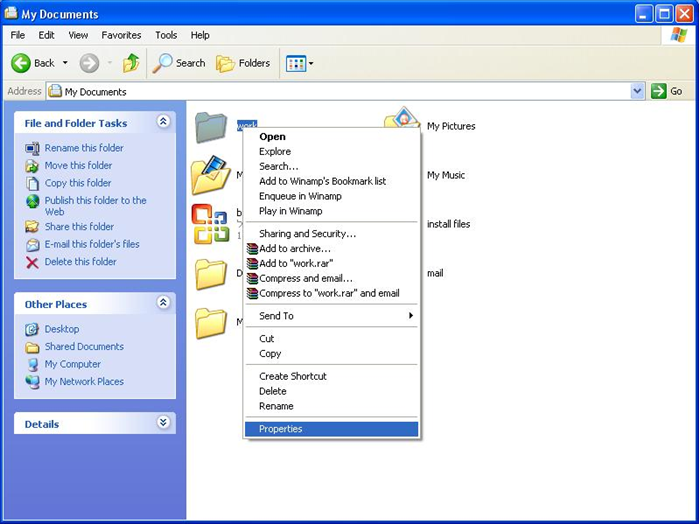
קיצורי דרך ושימוש בהפעלה או RUN בצורה יעילה.
איזה כיף היה אם היה אפשר להיכנס לשורת ה"הפעלה" (התחל->הפעלה) / (Start->Run) ולהשתמש בקיצורי דרך נוחים להפעיל כל תוכנה במחשב, בקלות.
What You'll Need
- קיצור
- הפעלה
- ווינדוס
- Windows
- Run
Tips
בעקרון זהו סוף המדריך. כמה טיפים שאולי לא ידעתם: 1. כדיי לפתוח את שורת ה"הפעלה" / "Run" בצורה מהירה אפשר להשתמש בקיצורי מקלדת: Win Key + R (כפתור עם הסימן של הווינדוס) 2. אפשר לפתוח כל תוכנה שקיימת בווינדוס משורת ההפעלה מהסיבה הפשוטה שתיקיית הווינדוס קיימת כבר ב "PATH" (כמו שתראו למעלה), לדוגמה כדיי לפתוח את הצייר אפשר להיכנס לשורת ההפעלה ולרשום pbrush או mspaint שזהו בעצם שם הקובץ היושב בתיקיית c:\windows\system32. תוכלו למצוא קיצורי מקלדת וקיצורי תוכנות לשורת ההפעלה בחיפוש מהיר בגוגל.
Warning
אם אתם לא סגורים על איך לשנות את "PATH" עדיף שלא תגעו, כעקרון בסה"כ חשוב להוסיף נקודה פסיק ( ; ) ואת הנתיב שאתם רוצים. חשוב -לא למחוק- שום דבר שבא לפני זה אם אתם לא יודעים את המשמעות של המחיקה!
Steps
- 1
Step 1
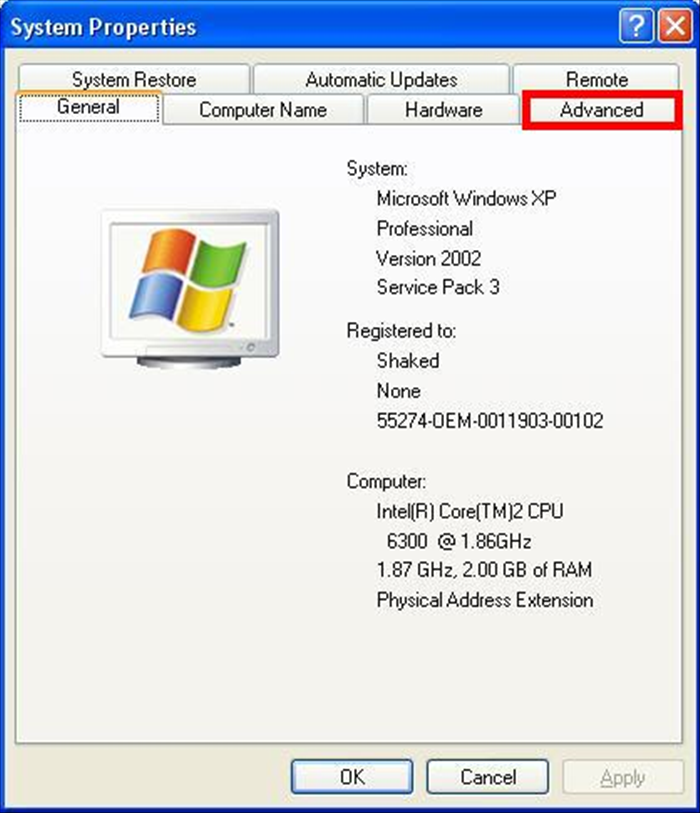 נכנס ללוח הבקרה, אפשר להיכנס במספר דרכים, המועדפת עליי היא: התחל -> הפעלה -> ונרשום "control" Start->run->Control אחרי שנכנסו נחפש "מערכת" או "System" ונפתח אותו (לחיצה כפולה...) ונכנס ללשונית "מתקדם" / "Advanced"
 - 2
Step 2
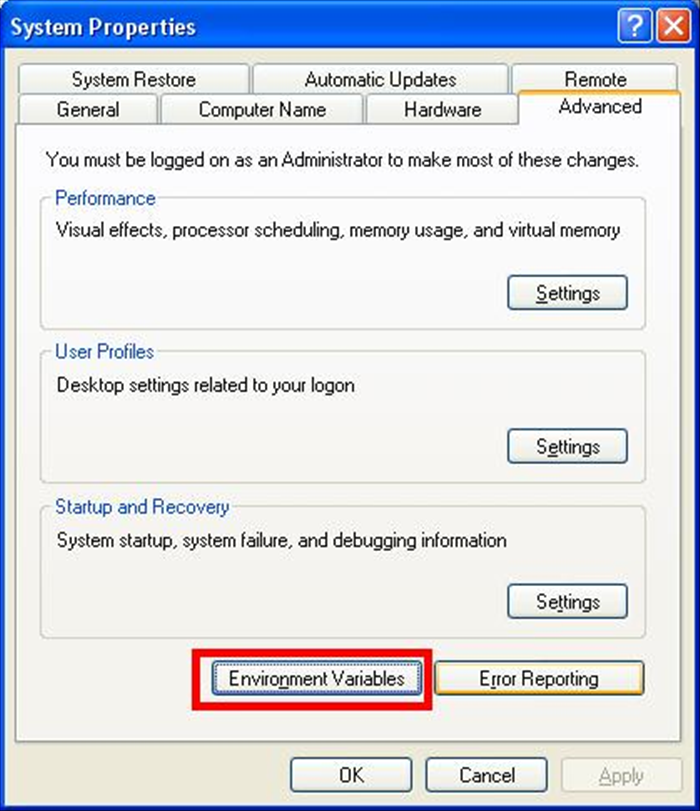 לאחר שנכנסו ללשונית הנ"ל, נלחץ על "Environment Variables" או "משתנים סביבתיים"
 -
- 3
Step 3
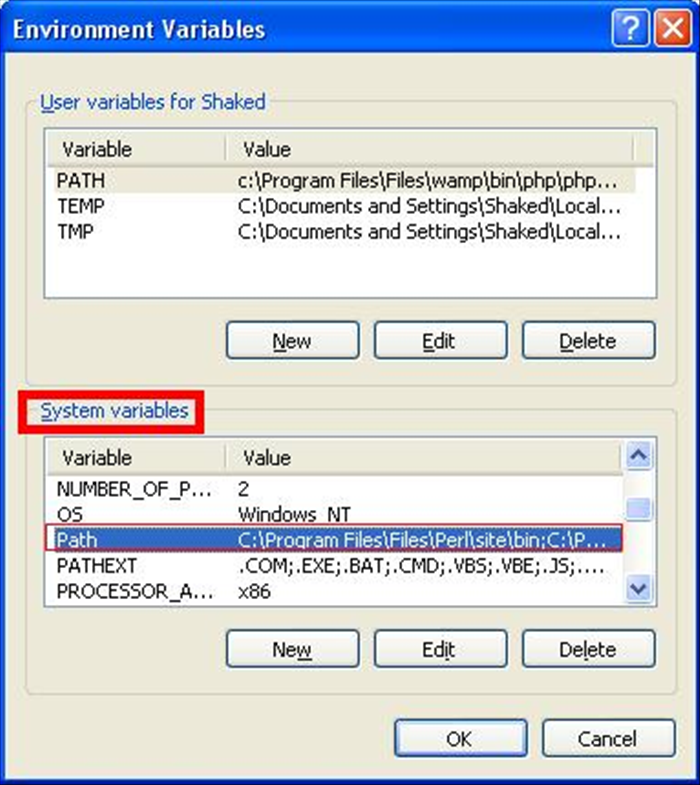 עכשיו יפתח חלון המחולק לשניים: 1. "משתני משתמש" / "User Variables" 2. "משתני מערכת" / "System Variables" נסתכל על משתני המערכת (System Variables) ונחפש את "PATH"
 - 4
Step 4
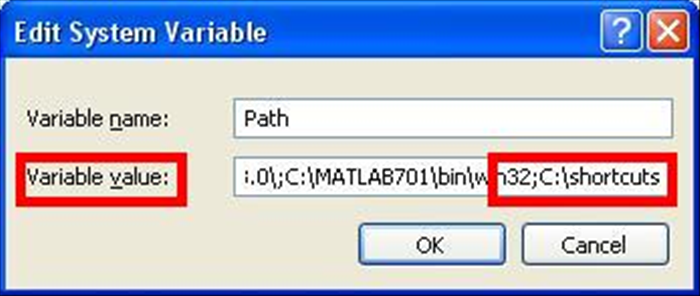 נלחץ פעמיים על "PATH" ונוסיף בסוף המשפט שרשום ב"ערך משתנה" / "Variable Value" תיקייה המכילה קיצורי דרך (לדוגמה: C:\shortcuts). התוצאה אמורה להראות כך פחות או יותר (תלוי אם התווספו עוד דברים אצלכם) : C:\WINDOWS\system32;C:\WINDOWS;C:\WINDOWS\System32\Wbem;C:\shortcuts שימו לב שיש להקפיד להכניס נקודה פסיק ( ; ) בכל סוף נתיב.
 - 5
Step 5
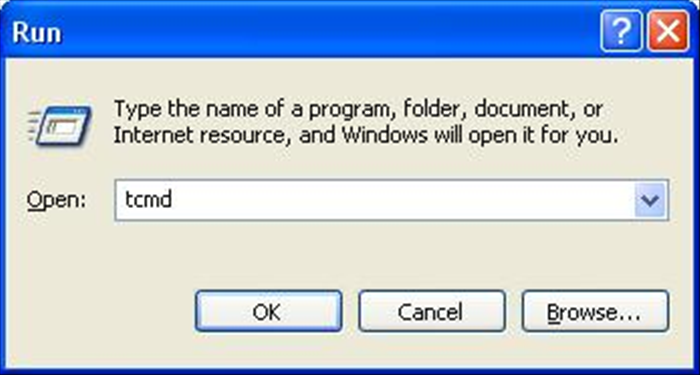 עכשיו אחרי שהוספנו הכל, נוכל להיכנס לשורת ה"הפעלה" / " Run " שלנו להפעיל כל קובץ שקיים בתיקייה c:\shortcuts, במקרה שלי שמרתיקיצור דרך לתוכנה שאני מאוד אוהב (Total Commander) ורק שיניתי לו את השם ל tcmd. כאשר אכניס tcmd בשורת ההפעלה, התוכנה תיפתח וכך גם כל שם של קיצור דרך/קובץ הפעלה בתיקייה הנ"ל.