How to share a screen or window while having a conversation on Skype with the newer version (Sept 2012).
You can share just one of the windows you have open or everything that you see on your computer screen while having a conversation on Skype. Why would you need it? It is convenient for doing homework or a project with someone who is not sitting next to you.You can show them what you have come up with or have them watch as you are doing it. It is so much easier to show someone your desktop if you have a computer problem rather than trying to explain what it is. Grandma or a friend is having trouble using a program? Show them how. It is not difficult to think of many reasons to share.
What You'll Need
- skype
- new version
Tips
On the older version of skype, you could click on the video call button to share screens. You cannot do it in the newer version (Sept 2012) In the newer version you will get a message that says you need Skype Premium to share screens. Use this guide to share screens in the new version.
Steps
- 1
Step 1
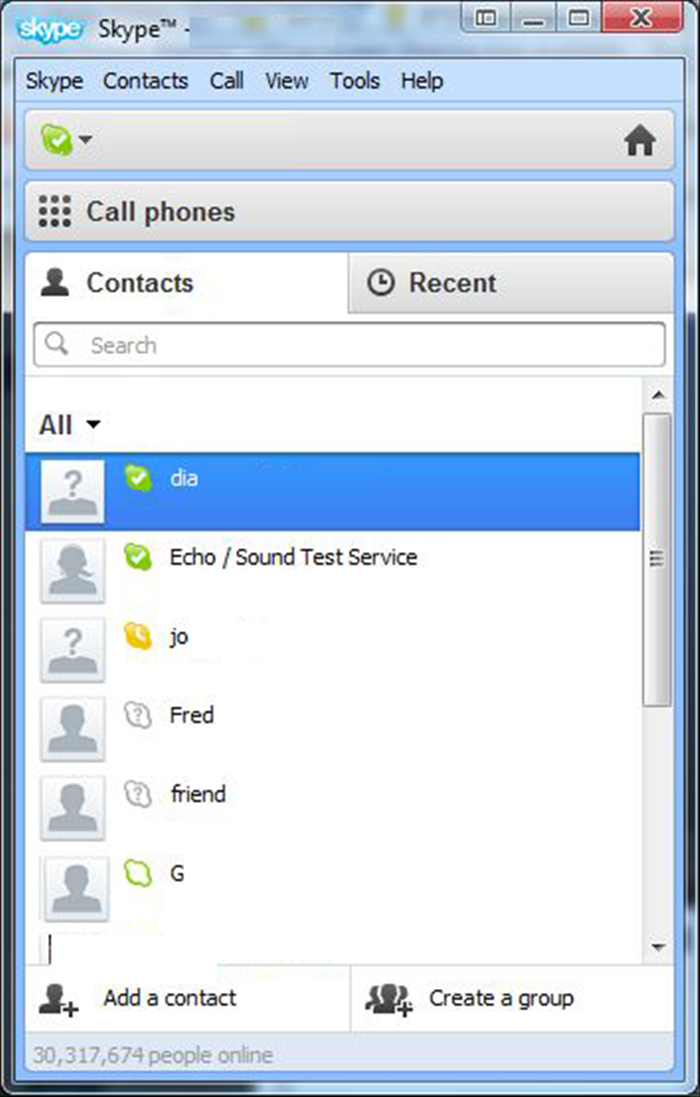 If you want to share your desktop, make sure you close anything you do not want them to see before you start. Open Skype Doubleclick on the person you want to share your screen or a window with. They must have a green checked icon next to their name to show that they are available
 - 2
Step 2
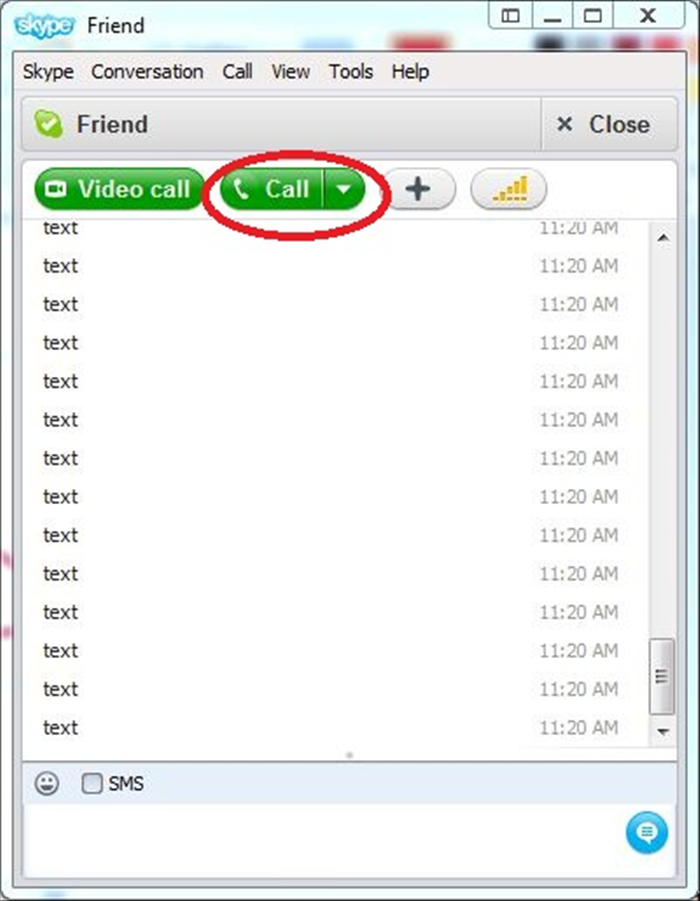 A new window will open. Click on the green call button
 -
- 3
Step 3
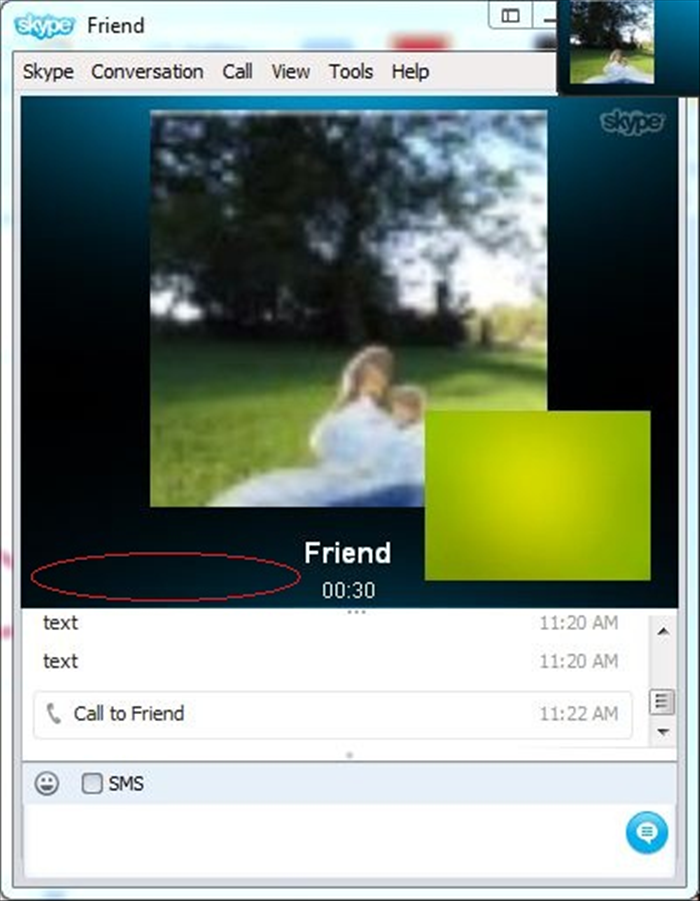 Bring your mouse to the black area and a menu will appear.
 - 4
Step 4
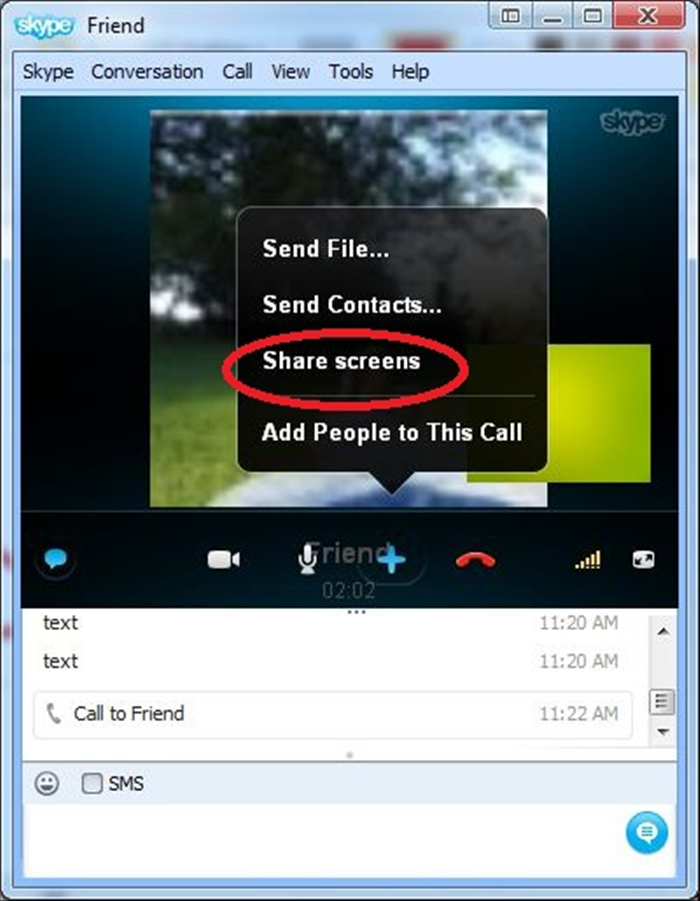 Click on the blue plus sign And then on Share screens
 - 5
Step 5
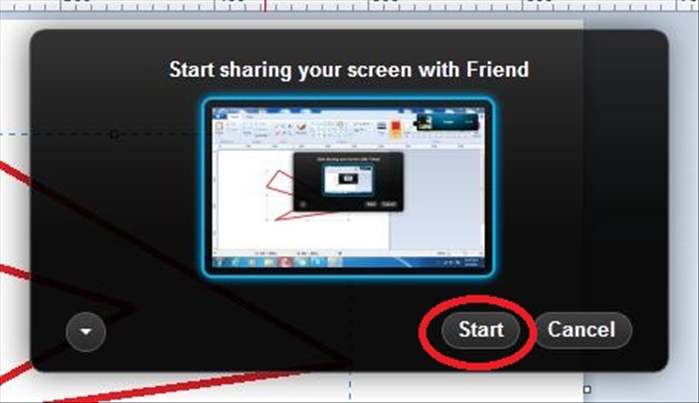 If you want to share everything on your screen click on the Start button But if you want your friend to see only one window that is open go to the next step before clicking the start button
 - 6
Step 6
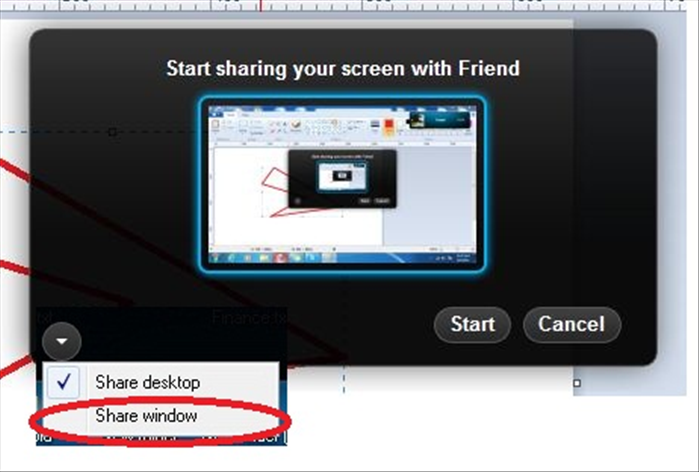 If you want to share only a view of one of the windows you have open and not the whole screen Click on the arrow And then share window
 - 7
Step 7
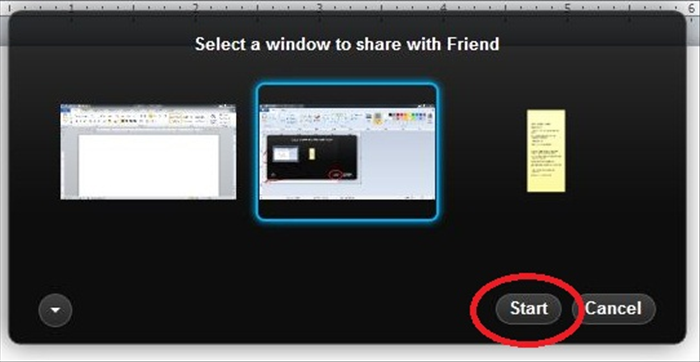 Click on the window you want to share. A blue box will appear around it. Then click on the Start button.
 - 8
Step 8
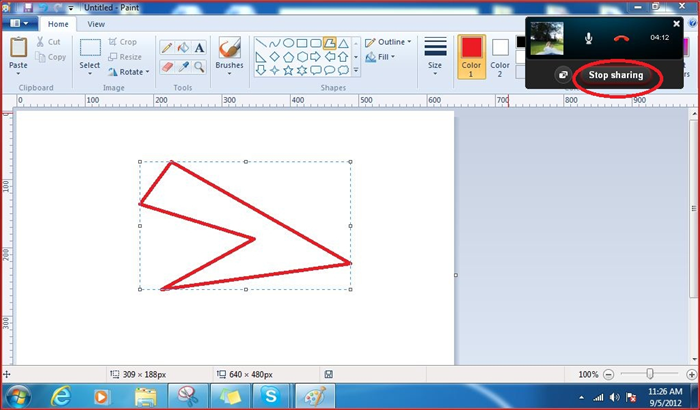 You can have a conversation while you are showing them what you are doing. When you have finished showing them, click on the Stop sharing button.