How to make a simple striped ball with Inkscape
An easy way to make a simple stripped ball in Inkscape is to make a circle and then make 5 copies, each with an alternate color and 10 percent smaller in width.
What You'll Need
- Inkscape
- striped balls
- Christmas
- graphics
Tips
Select object and group to move and rotate ball or ungroup and select each strip to change the color
Steps
- 1
Step 1

Inkscape is a free professional vector graphics editor that works on Windows, Linux and macOS. You can download it from https://inkscape.org/
- 2
Step 2
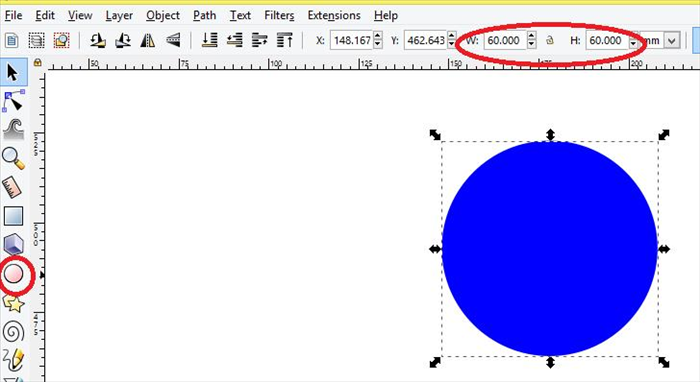
Select the circle tool and create a circle. Select the circle and set the width to 60 mm and the height to 60mm .
-
- 3
Step 3
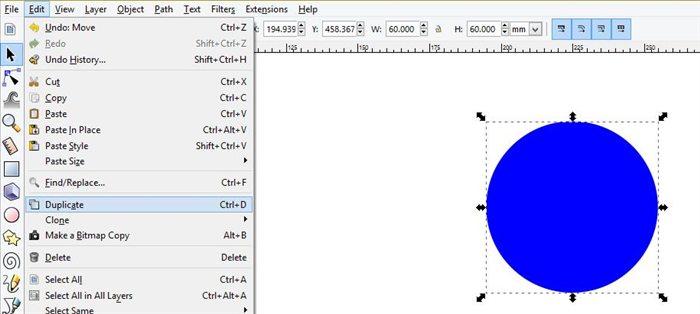
click on edit - duplicate or use ctrl + d on your keyboard
- 4
Step 4
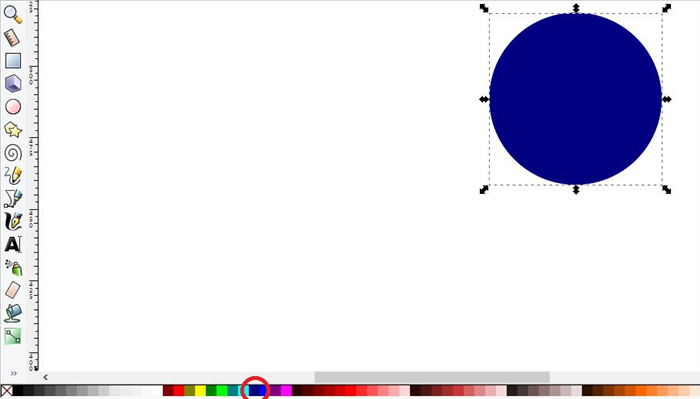
click on another color
- 5
Step 5
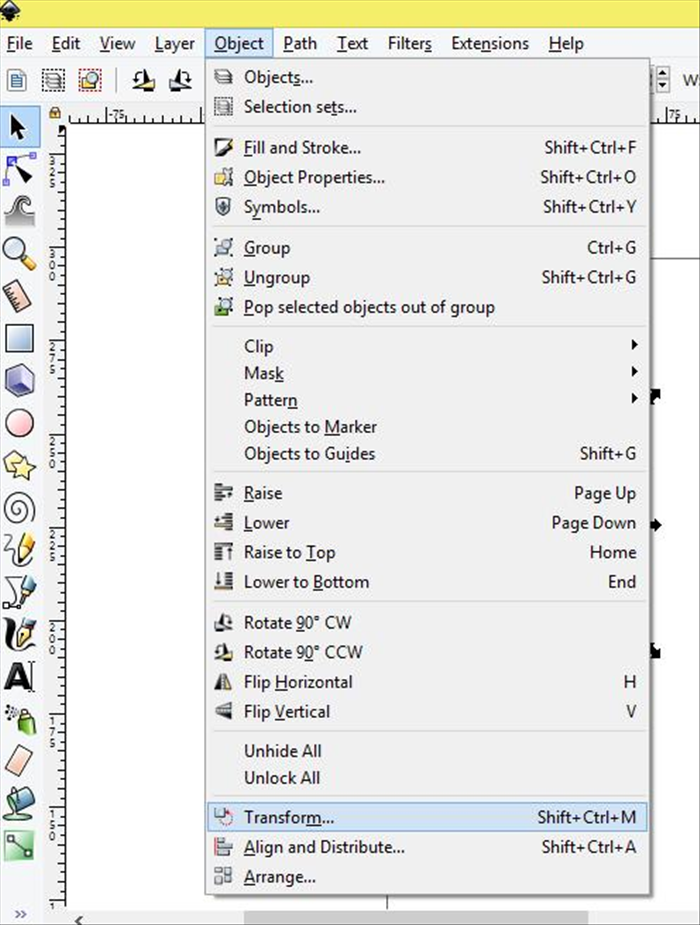
Click on object - transform
- 6
Step 6
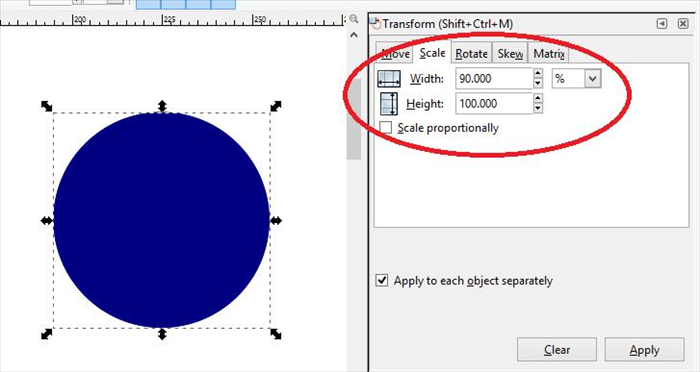
select the scale tab change the width to 90 percent
- 7
Step 7
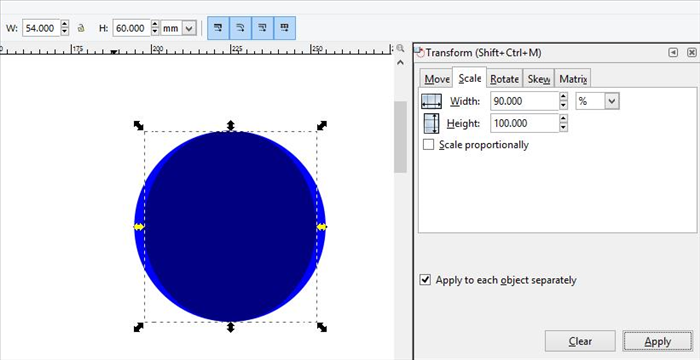
Result
- 8
Step 8
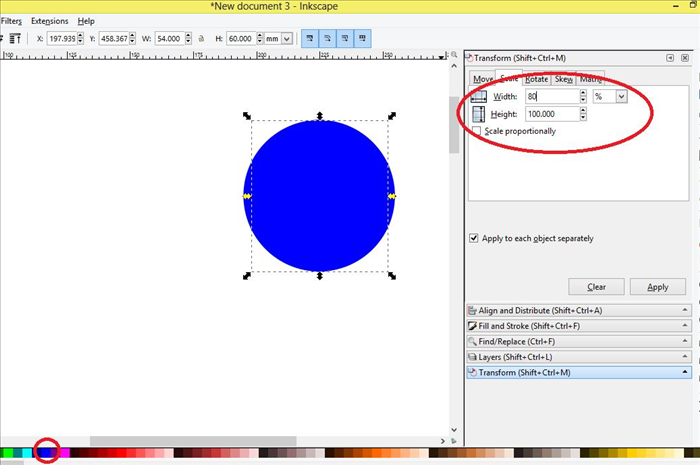
ctrl and d to copy in place change the color again and change the width 80 percent
- 9
Step 9
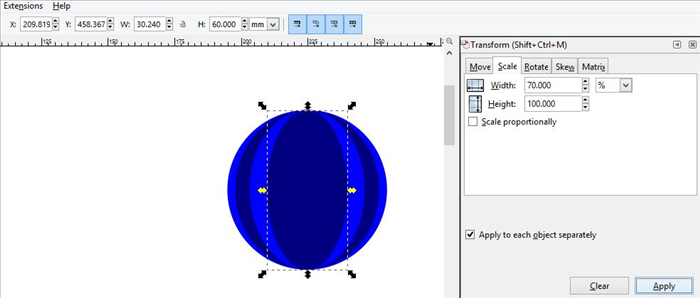
ctrl and d to copy in place change the color again and change the width 70 percent
- 10
Step 10
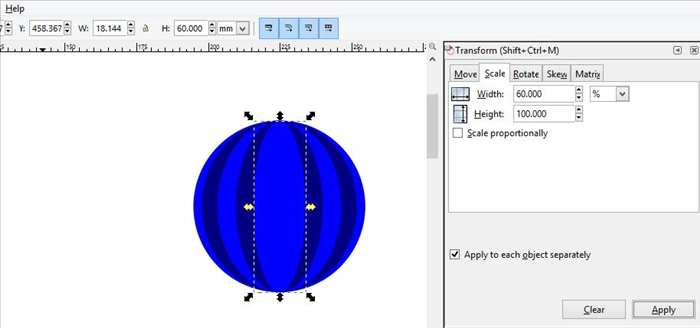
ctrl = d to copy in place
change the color again and change the width 60 percent
- 11
Step 11
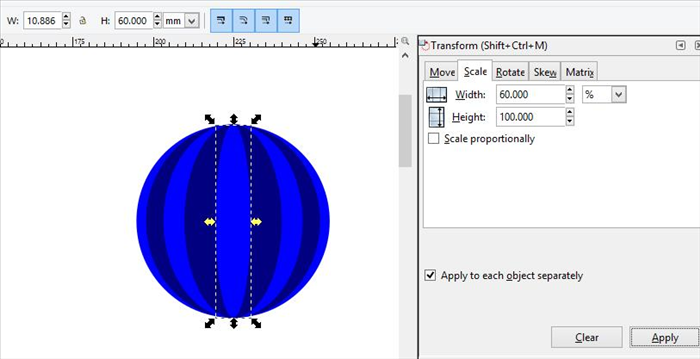
result
- 12
Step 12
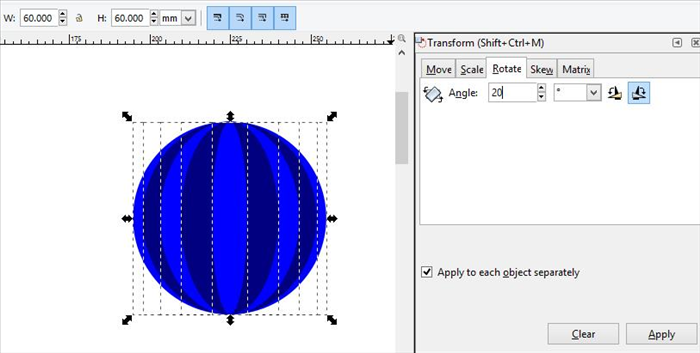
if you want to rotate the ball, click on the rotate tab on the menu and choose an angle
- 13
Step 13
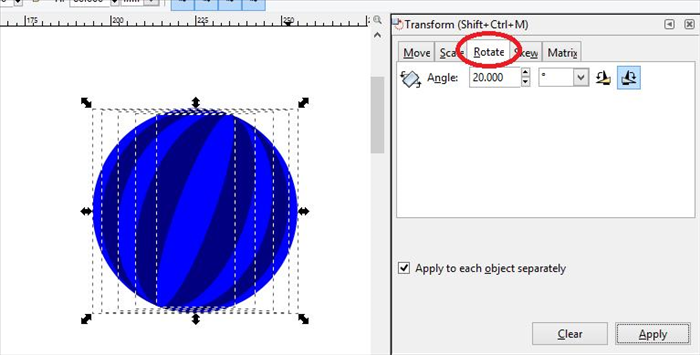
result
- 14
Step 14

You can copy, select stripes to change colors and use the Transform menu to change the size, location and rotation of different balls. Enjoy!