How to color a wireframe sphere with stripes in Inkscape
This guide will show you how to use the render sphere extension in Inkscape and how to divide it into individual stripes that you easily fill with color
What You'll Need
- Inkscape
- stripped sphere
- globe. ball
- render sphere
- graghics
Steps
- 1
Step 1
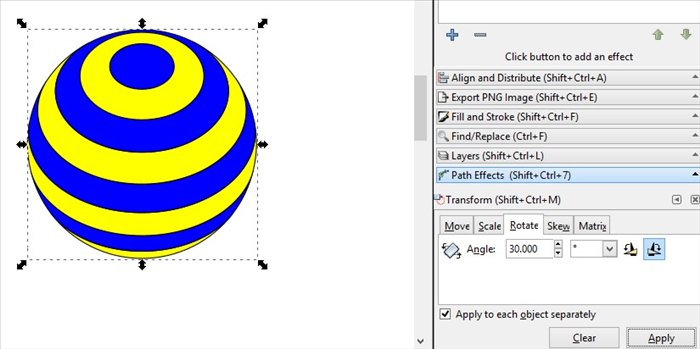
Inkscape is a free professional vector graphics editor that works on Windows, Linux and macOS. You can download it from https://inkscape.org/
- 2
Step 2
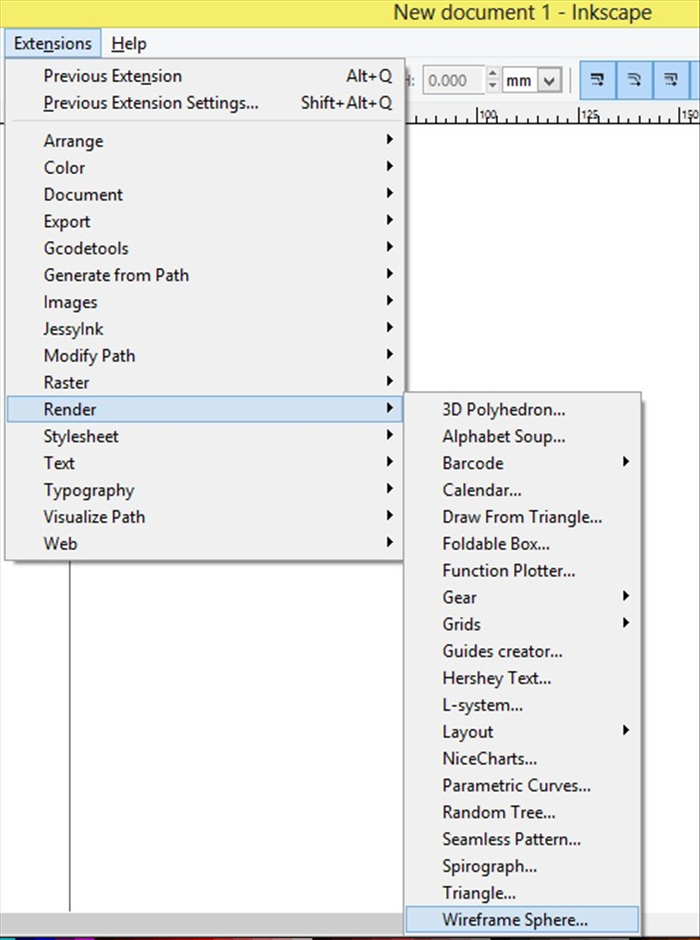
Click on Extensions - Render - Wireframe Sphere
-
- 3
Step 3
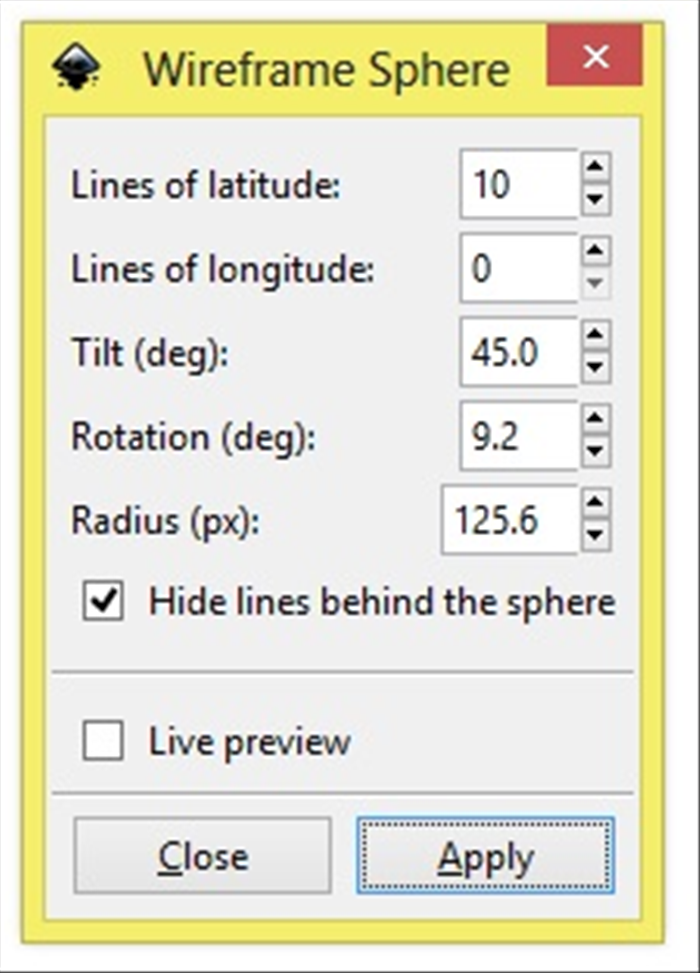
Copy the numbers and checkmark in this menu. Click Apply
- 4
Step 4
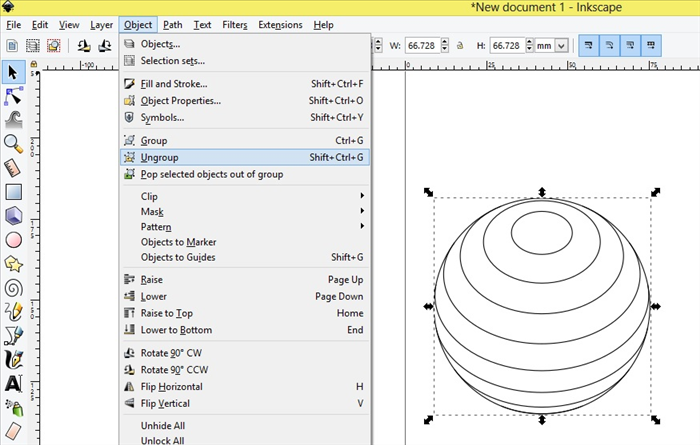
Select the globe Click on Object - Ungroup
- 5
Step 5
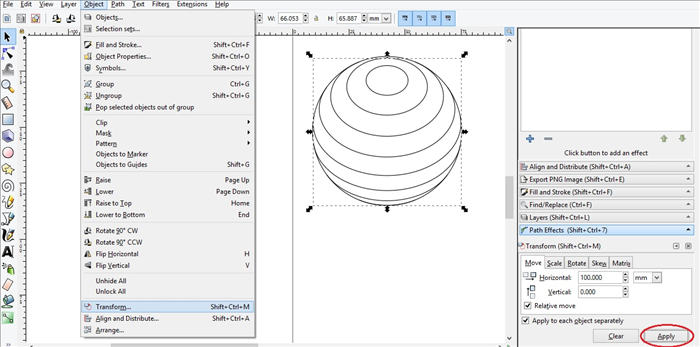
Click - Transform - Click on Move Tab Change Horizontal to 100 - Click Apply
- 6
Step 6
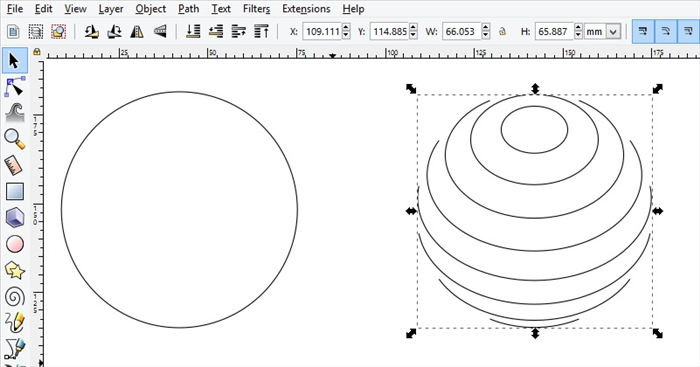
Result
- 7
Step 7
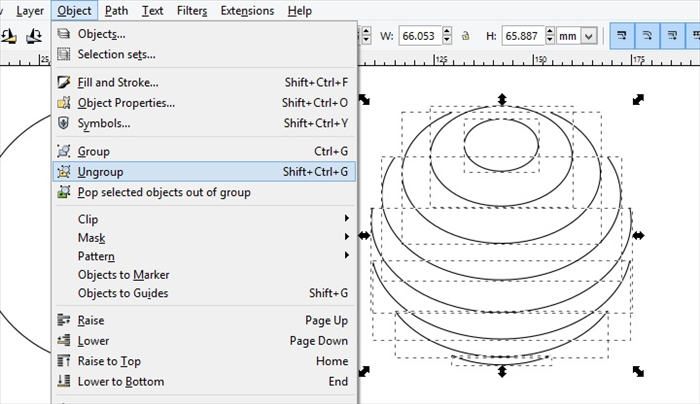
Click on Object - Ungroup
- 8
Step 8
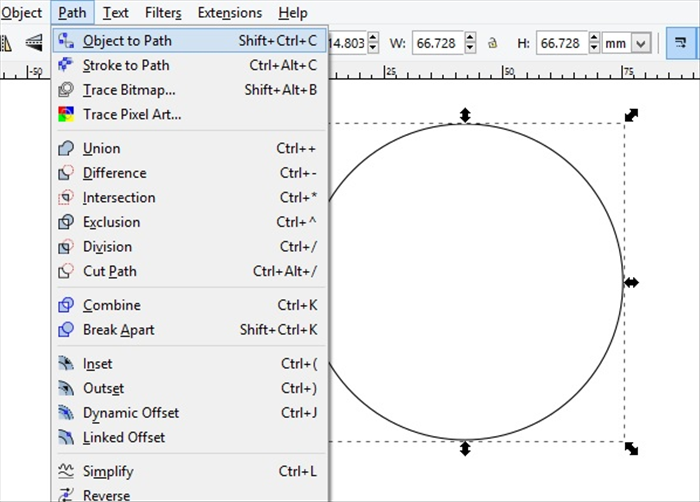
Select the circle Click Path - Object to path
- 9
Step 9
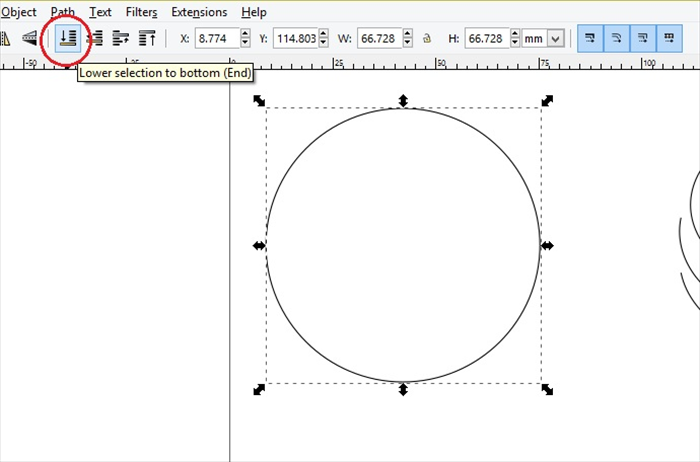
With circle still selected - Click lower selection to bottom
- 10
Step 10
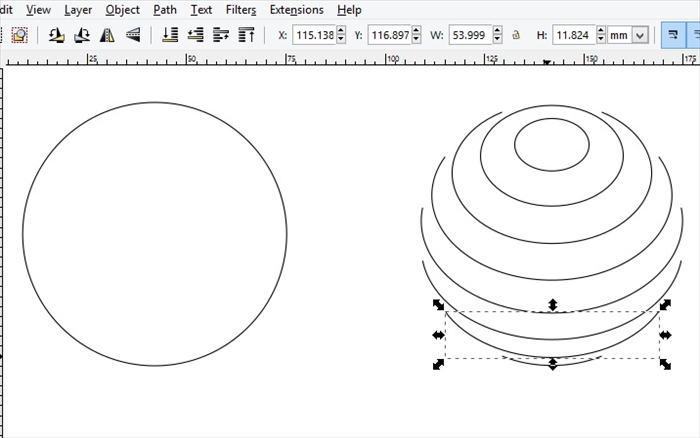
Click on the second to bottom curve line.
- 11
Step 11
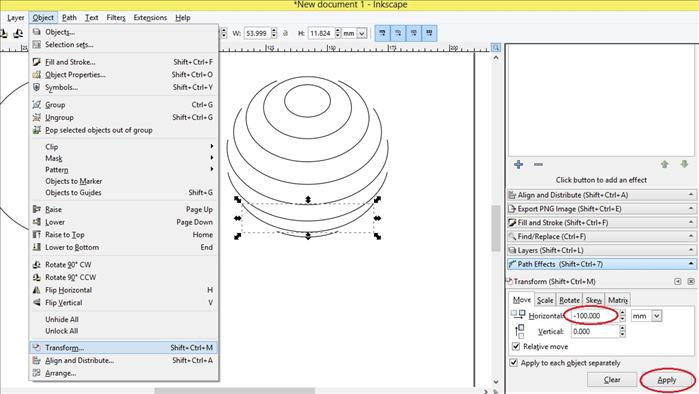
Click on Object - Transform Click on Move Tab Change Horizontal to -100 (minus 100) Click Apply
- 12
Step 12
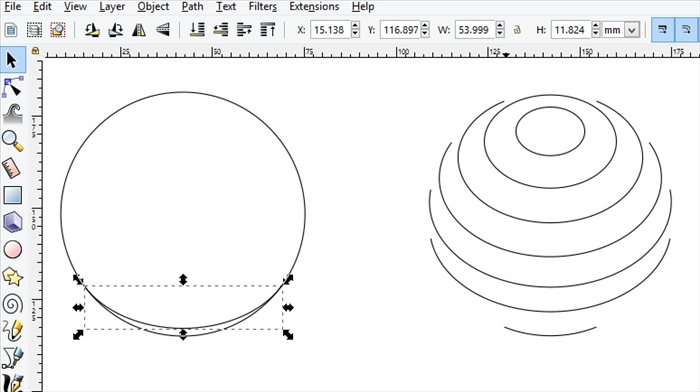
Result
- 13
Step 13
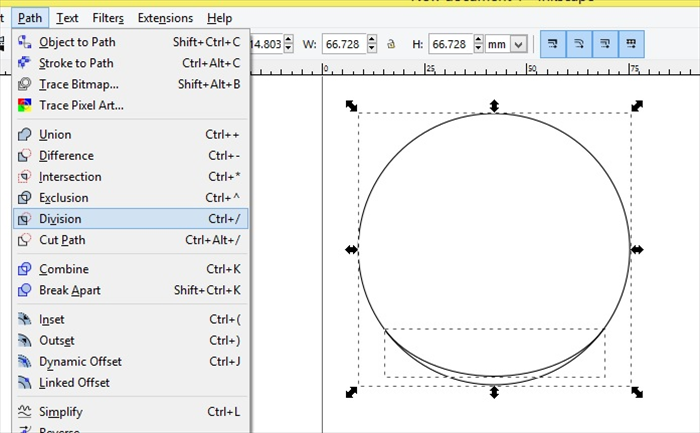
Select both the curve line and While pressing shift on you keyboard select the circle Click Path - Division
- 14
Step 14
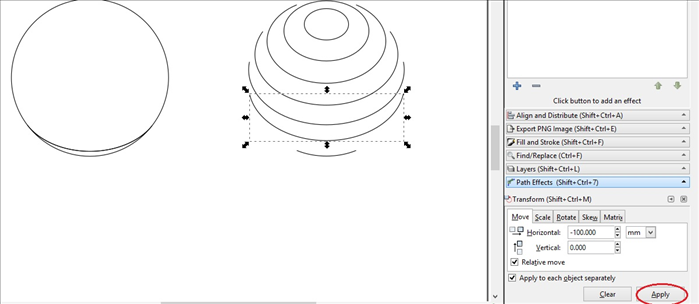
Select what is now the second to bottom curve line Click Apply on Transfer - Move
- 15
Step 15
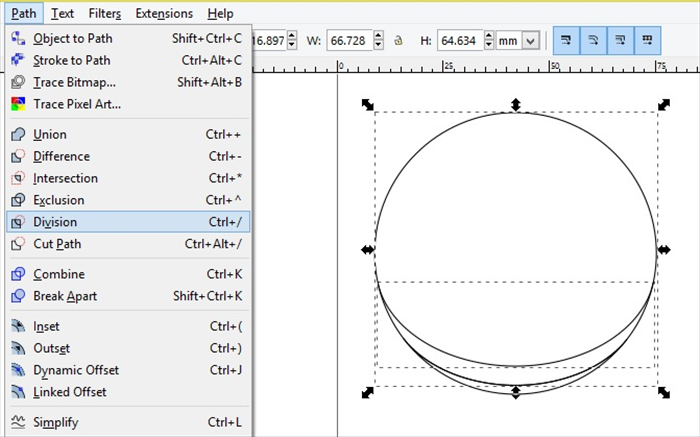
With the moved curve line selected press the shift key on your keyboard to select them both. Click Path - Division
- 16
Step 16
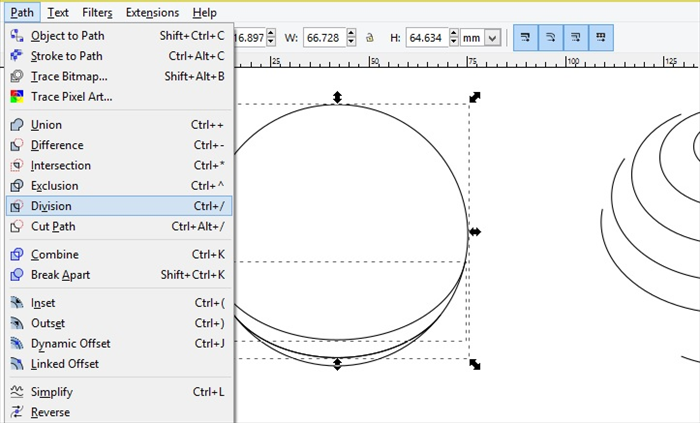
Repeat select the second bottom curve line and move and with that curve line selected - shift on keyboard and Path - Division
- 17
Step 17
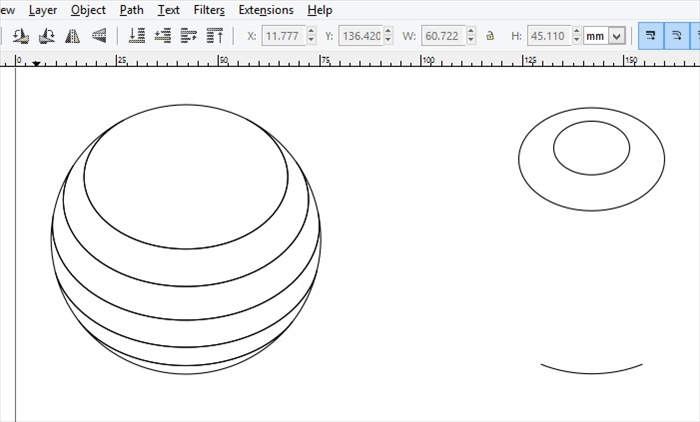
Repeat move and division steps for the next 3 curve lines
- 18
Step 18
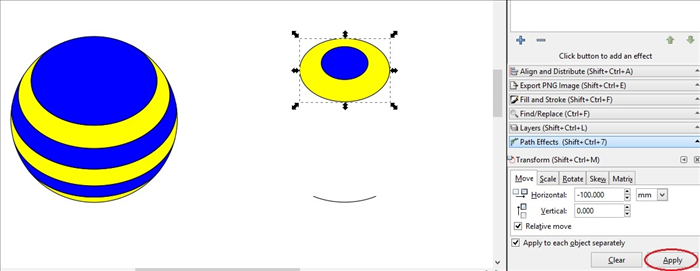
Select inside each strip and click on alternate colors for fill Select each oval on the right and and fill with matching colors Select the larger of the 2 ovals and click apply on move menu
- 19
Step 19
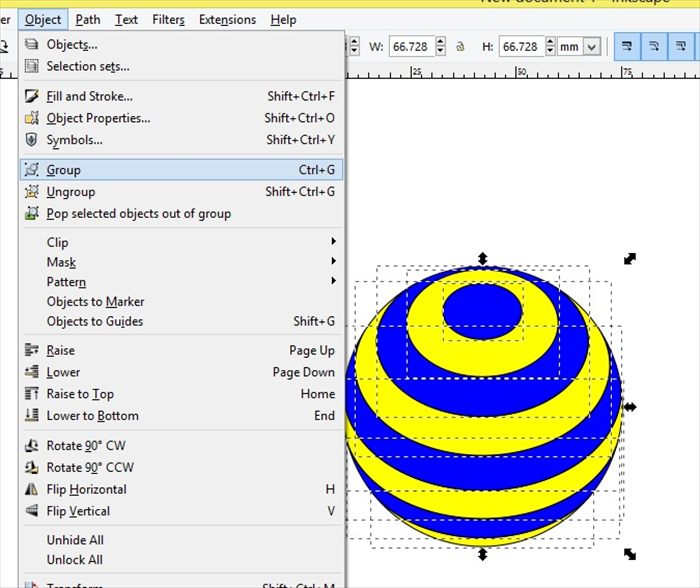
Select the small oval on the right and click apply to move it Select the stripped circle Click Object - Group
- 20
Step 20
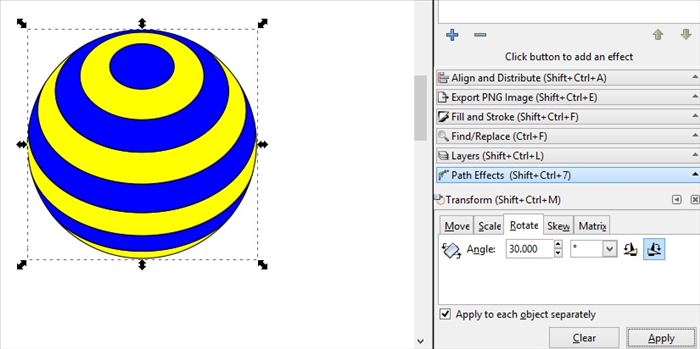
Your stripped globe is ready. You can Rotate it with the Rotate tab on the Transform menu