How to make a simple striped ball with Inkscape

How to make a simple striped ball with Inkscape

An easy way to make a simple stripped ball in Inkscape is to make a circle and then make 5 copies, each with an alternate color and 10 percent smaller in width.

Easy 3,286 views

What You'll Need

  • Inkscape
  • striped balls
  • Christmas
  • graphics

Tips

Select object and group to move and rotate ball or ungroup and select each strip to change the color

Steps

  1. 1

    Step 1

    Step 1

    Inkscape is a free professional vector graphics editor that works on  Windows, Linux and macOS. You can download it from https://inkscape.org/

  2. 2

    Step 2

    Step 2

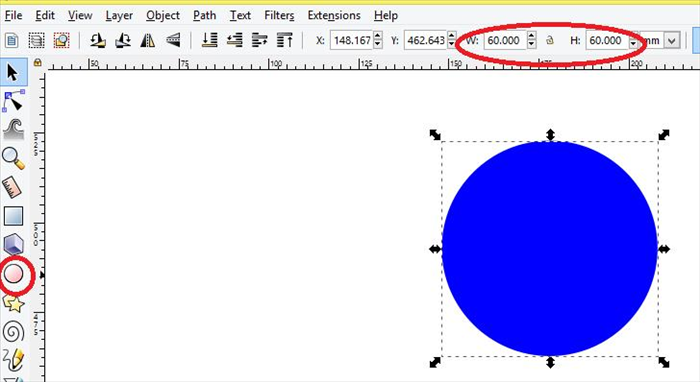
    Select the circle tool and create a circle. Select the circle and set the width to 60 mm and the height to 60mm .  

  3. 3

    Step 3

    Step 3

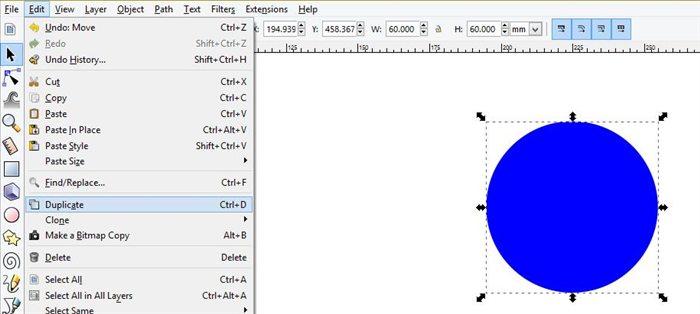
    click on edit - duplicate or use ctrl + d on your keyboard  

  4. 4

    Step 4

    Step 4

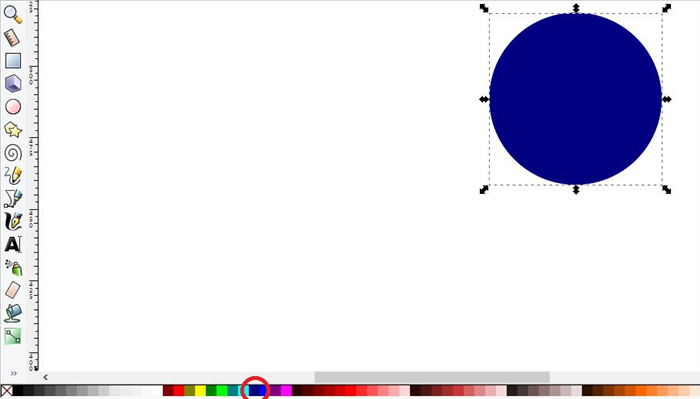
    click on another color

  5. 5

    Step 5

    Step 5

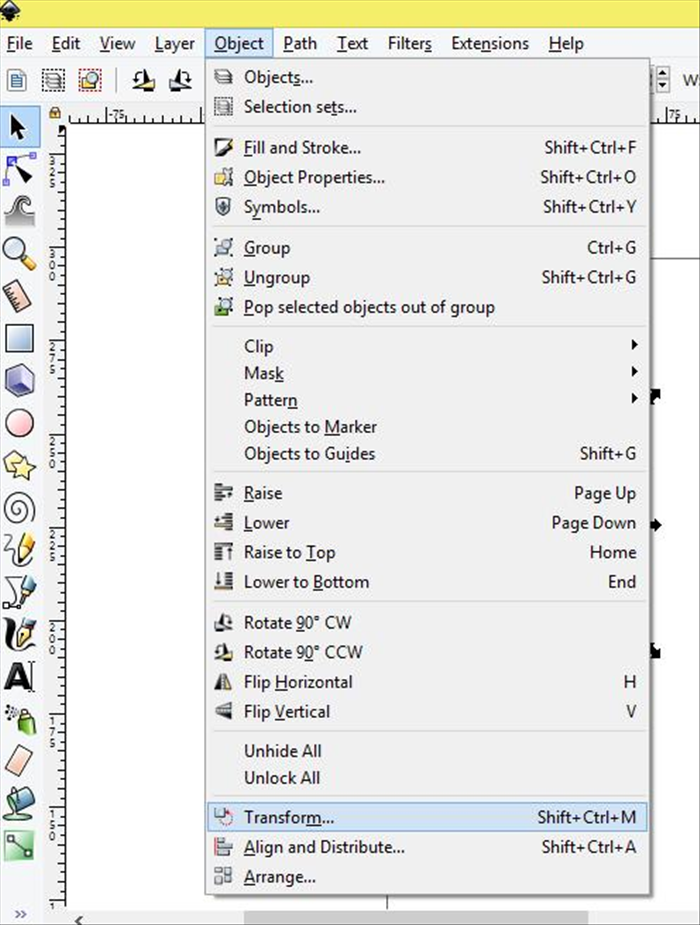
    Click on object - transform

  6. 6

    Step 6

    Step 6

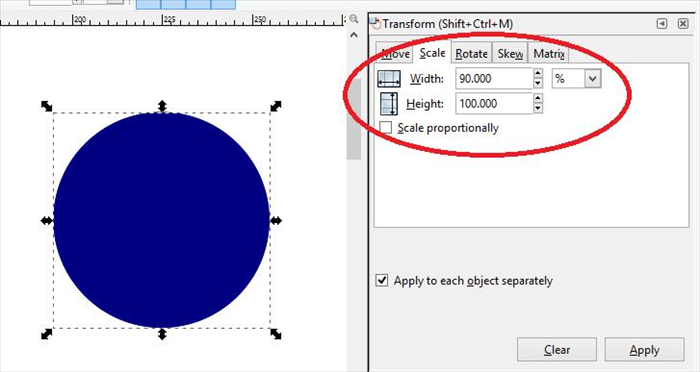
    select the scale tab change the width to 90 percent  

  7. 7

    Step 7

    Step 7

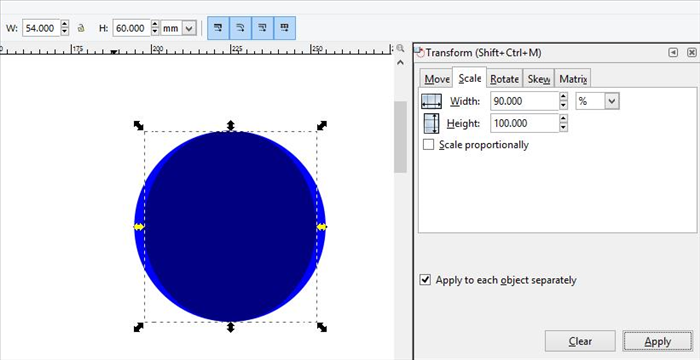
    Result

  8. 8

    Step 8

    Step 8

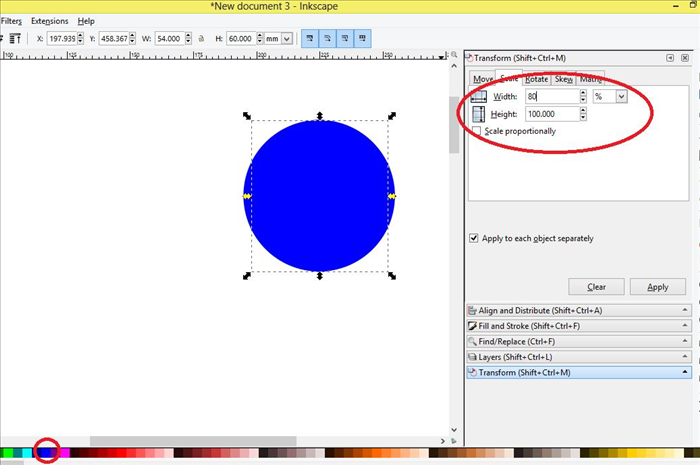
    ctrl and d to copy in place change the color again  and change the width 80 percent  

  9. 9

    Step 9

    Step 9

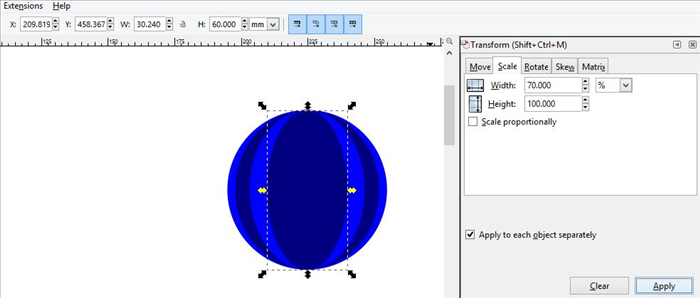
    ctrl and d to copy in place change the color again  and change the width 70 percent  

  10. 10

    Step 10

    Step 10

    ctrl = d to copy in place

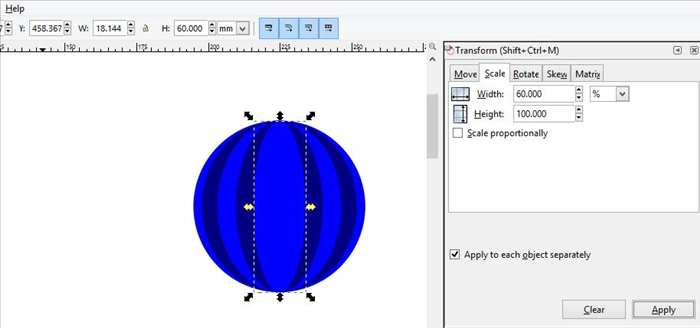
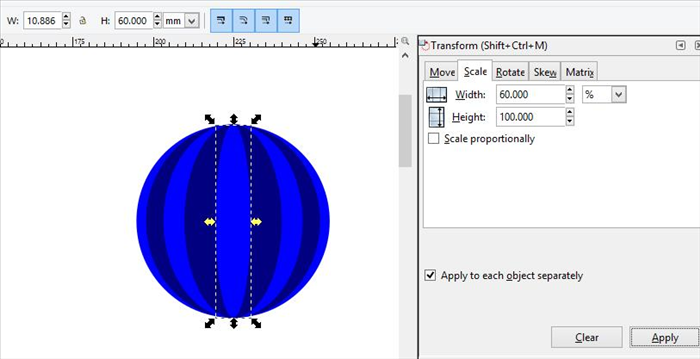
    change the color again  and change the width 60 percent  

  11. 11

    Step 11

    Step 11

    result  

  12. 12

    Step 12

    Step 12

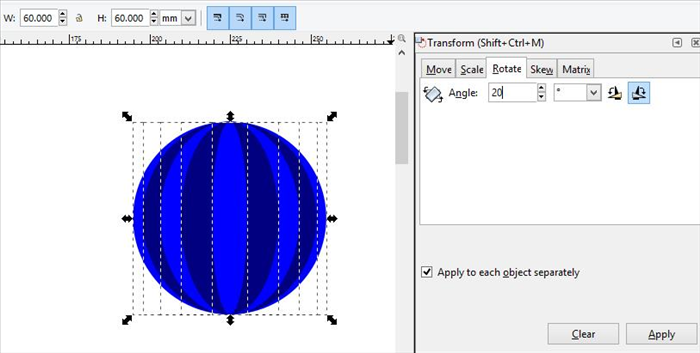
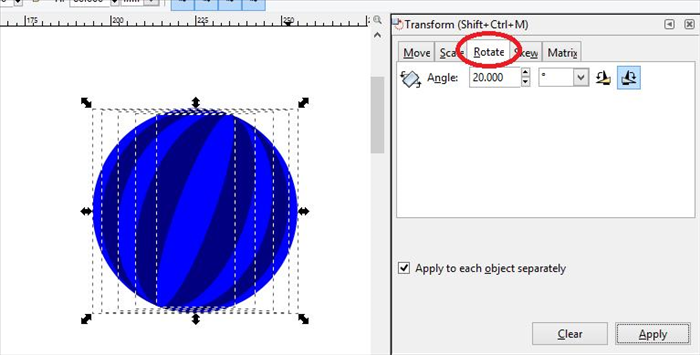
    if you want to rotate the ball, click on the rotate tab on the menu and choose an angle   

  13. 13

    Step 13

    Step 13

    result

  14. 14

    Step 14

    Step 14

    You can copy, select stripes to change colors and use the Transform menu to change the size, location and rotation of different balls. Enjoy!  
Related Guides

איך להקטין נפח של תמונה בעזרת הצייר של ווינדוס 7 (MSpaint)

איך להקטין נפח של תמונה בעזרת הצייר של ווינדוס 7 (MSpaint)

לפעמים כאשר אנחנו רוצים לשלוח או להעלות תמונות אנו נתקלים במצב שההעלאה לוקחת יותר מדי זמן או שהאתר אינו מאפשר להעלות תמונות בנפח גדול. ובכן, בצייר של מיקרוסופט (הצייר שבא עם מערכת ההפעלה) ניתן להקטין נפח של תמונות בכמה פעולות מאוד פשוטות.

Easy 577 views
How to make your own ecard with MS Paint

How to make your own ecard with MS Paint

This guide will show you how easy it is to make your own e-card with Paint and a tip on how to reduce the size of a high resolution photo.

Medium 13K views
How to add a drop shadow in Photoshop

How to add a drop shadow in Photoshop

This guide will show you how easy it is to give an object or image a simple impression of depth by adding a drop shadow in Photoshop

Easy 10K views
How to make a functional desktop picture - wallpaper

How to make a functional desktop picture - wallpaper

Dividing your decktop into sections and placing your folders into them will make it easier to spot what you are looking for. This guide will show you a simple and easy way to do it with MS paint.

Easy 13K views
Optimal Facebook Photo Sizes & Dimensions for Profile Pictures, Cover Photos, and Posts

Optimal Facebook Photo Sizes & Dimensions for Profile Pictures, Cover Photos, and Posts

Master Facebook photo sizes! Get exact dimensions for profile pictures, cover photos, and posts on desktop & mobile, plus optimization tips for perfect uploads.

Medium 8K views
Inkscape Paper Mosaic Tutorial: Design Your Own Coloring Pages

Inkscape Paper Mosaic Tutorial: Design Your Own Coloring Pages

Learn to create stunning paper mosaic designs in Inkscape! Follow this step-by-step tutorial to transform images into unique digital mosaic art or printable coloring pages.

Medium 7K views